
Welcome to SCMBOS WMS v2
This knowledge base walks through every feature and submenu of your WMS. Each section explains purpose, typical workflows, operational examples, validations, permissions, and integration notes. Use the left menu to navigate — sections are designed for trainers, operators, supervisors and system administrators.
Inbound — Overview
The Inbound module controls the entire lifecycle of goods arriving at the warehouse. It coordinates arrival planning, receiving, quality checks, label application, and storing. A robust inbound flow reduces receiving time, eliminates errors, and updates ERP in near real-time. Inbound transactions typically originate from purchase orders, transfer orders (internal moves), returns, or direct supplier deliveries.
Inbound Module – Key Process Items
- In-Transit Products — Review and verify all products marked as in-transit.
- Print Unloading Sheet — Generate and print the unloading sheet for the incoming shipment.
- Unload Products Using Handheld Scanner — Scan and unload each product using the handheld scanner (scanner gun).
- Order Correction — Review and correct any discrepancies found during unloading.
- Goods Receipt Note (GRN) — Create and confirm the GRN to complete the inbound process.

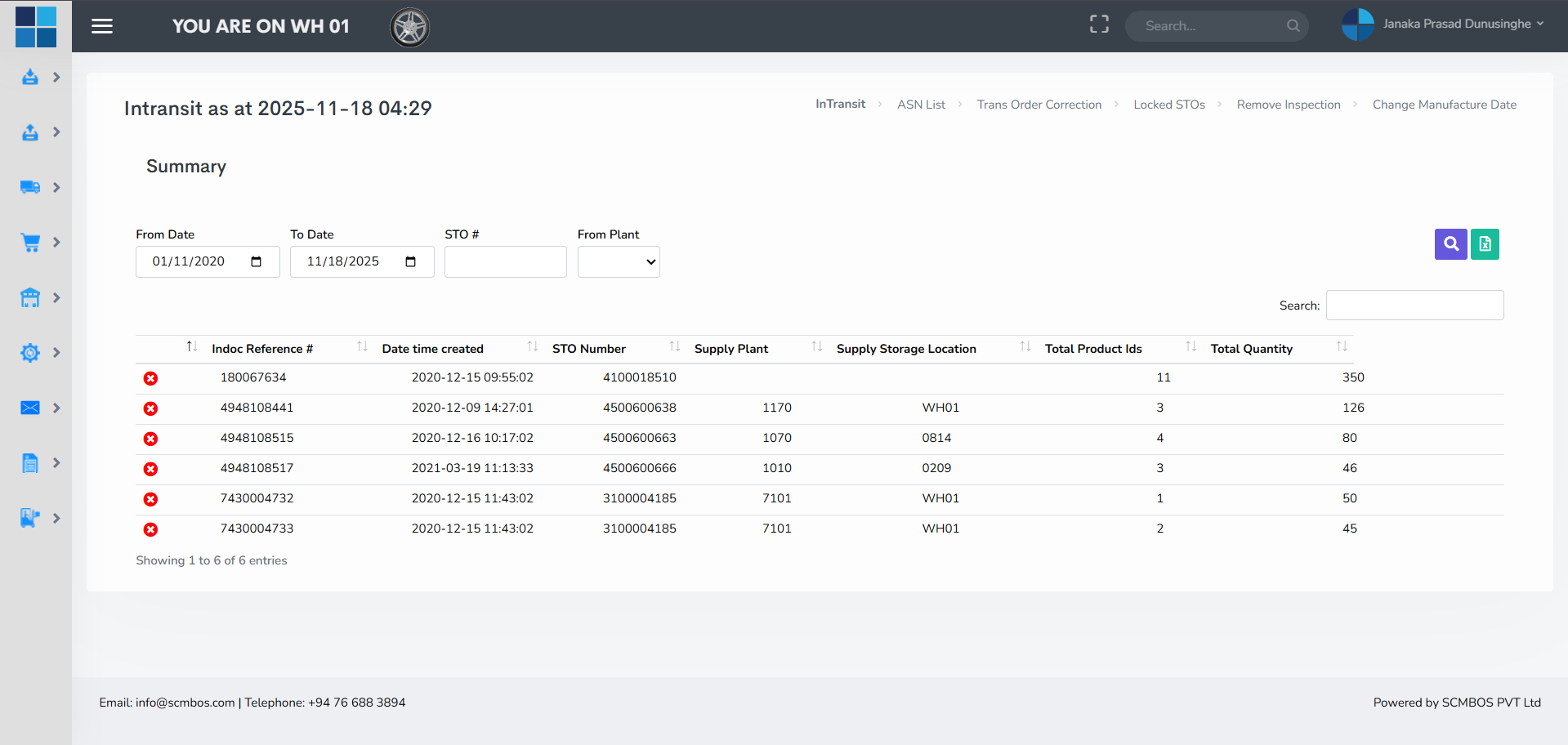
IN transit Goods
All inbound documents are automatically transmitted from the SCMBOS system to the connected external systems through system-to-system integration. This integration ensures seamless data flow, timely updates, and accurate synchronization across all platforms involved in the inbound process. Eg:-SAP , Oracle
ASNs (Advanced Shipment Notices) — Inbound List
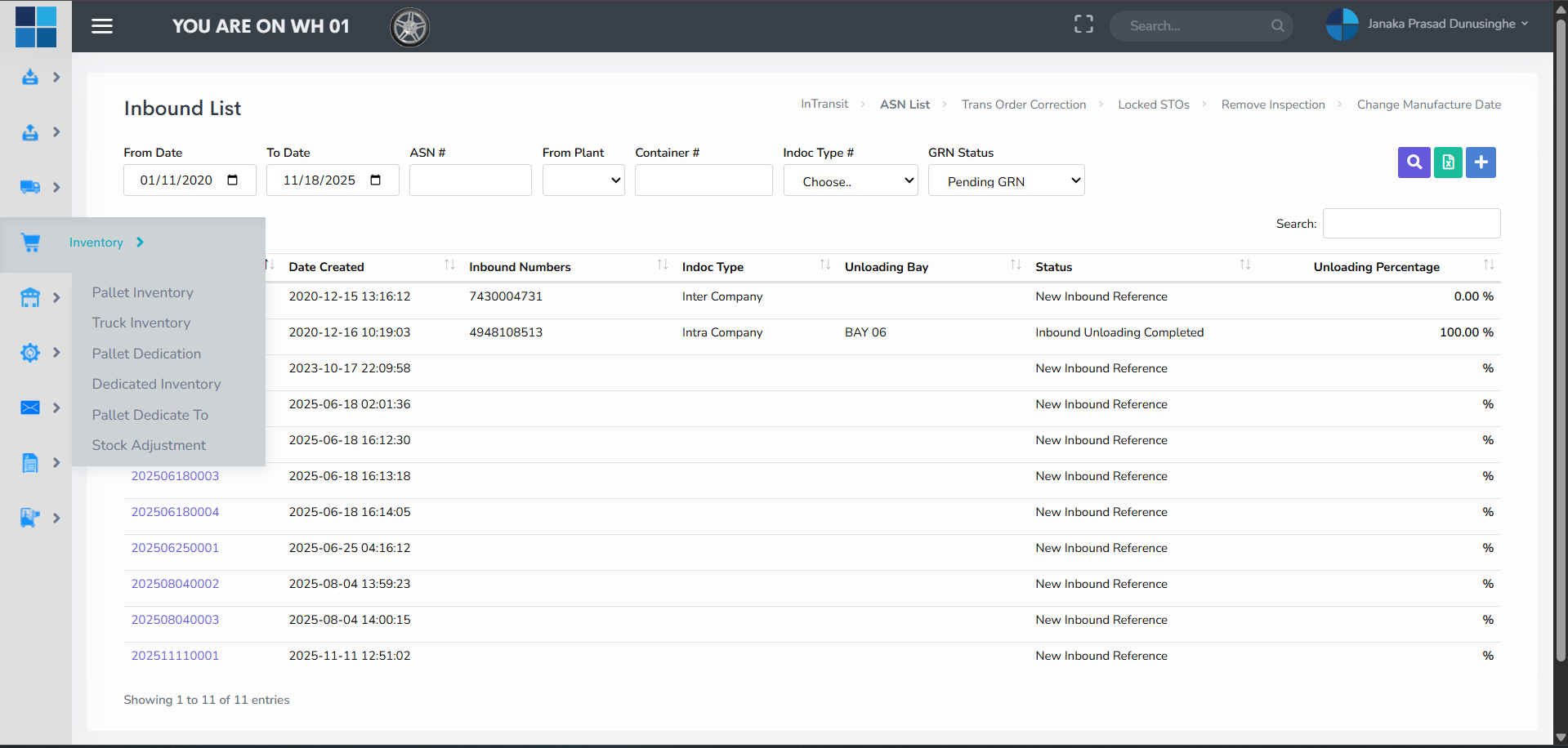
Inbound List Module
The Inbound List module provides a centralized, real-time view of all incoming shipments, purchase orders, and GRN activities. The interface is optimized for rapid identification, verification, and processing of inbound inventory.
Key capabilities include:
- Advanced Search Panel — Users can quickly locate inbound records using a dynamic search bar that supports multiple parameters, including PO number, supplier, item code, GRN number, and status.
- Date-Range Search — A dedicated date-range selector enables precise filtering of inbound transactions by expected arrival date, receiving date, or document creation date, improving traceability and audit efficiency.
- Enhanced Filtering Options — Additional filters—such as warehouse location, shipment type, priority level, SKU category, and receiving status—allow users to refine search results for faster decision-making and operational accuracy.
- Real-time Data Visibility — All filtered results update instantly, ensuring that warehouse teams have access to the most current inbound information at any moment.
- User-friendly Layout — Clean grid layouts, sortable columns, and export capabilities support streamlined workflow management and reporting.
Transfer Order Correction
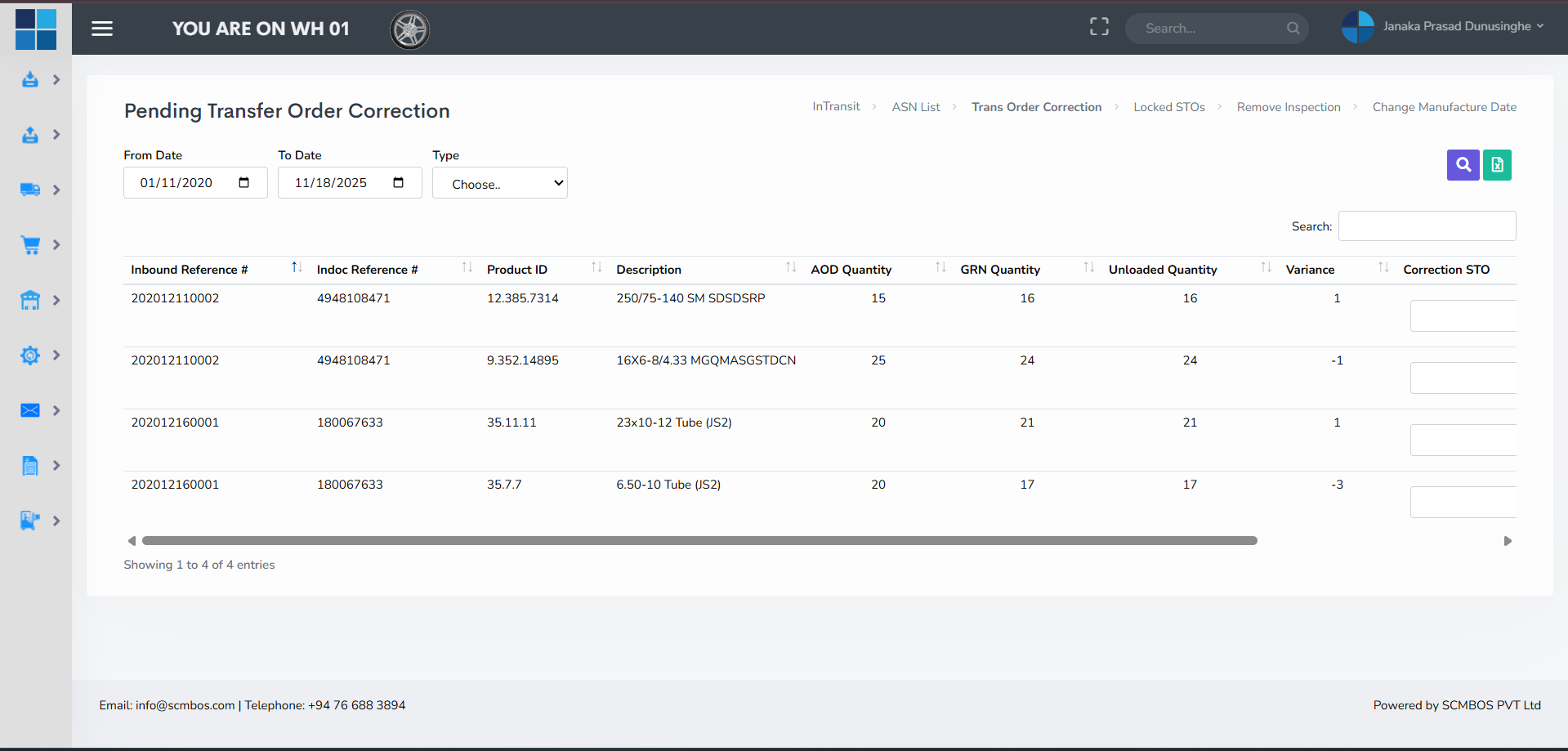
The Inbound Transfer Order Correction function enables warehouse teams to accurately reconcile variances between the planned inbound quantities and the actual quantities received. This feature ensures data integrity, operational transparency, and seamless inventory alignment.
Key Capabilities:
- Automatic Pallet Label Adjustment — When additional quantities are received, the SCMBOS system automatically generates the required pallet labels to accommodate the surplus units, ensuring every pallet is traceable and compliant with inbound handling standards.
- Pallet Quantity Reduction for Excess Allocations — If the system detects over-allocated or invalid pallet quantities, it intelligently recalculates and reduces the pallet count to reflect the accurate received quantity, preventing incorrect stock posting.
- Real-time Quantity Reconciliation — All corrections are reflected instantly within the inbound transfer order, ensuring that inventory records and physical stock are fully synchronized.
Locked STOs
STOs (Stock Transfer Orders) become locked when there are processing errors — e.g., duplicate scans, open holds, or incomplete transaction data. Locked STOs prevent the system from posting incorrect stock movements. The locked STOs panel lists records with error codes and recommended actions so operators or managers can resolve them safely.
Common resolution steps: investigate error log → check source documentation → correct or cancel incorrect lines → reprocess STO. Provide a link to the original PO / transfer to ease troubleshooting.

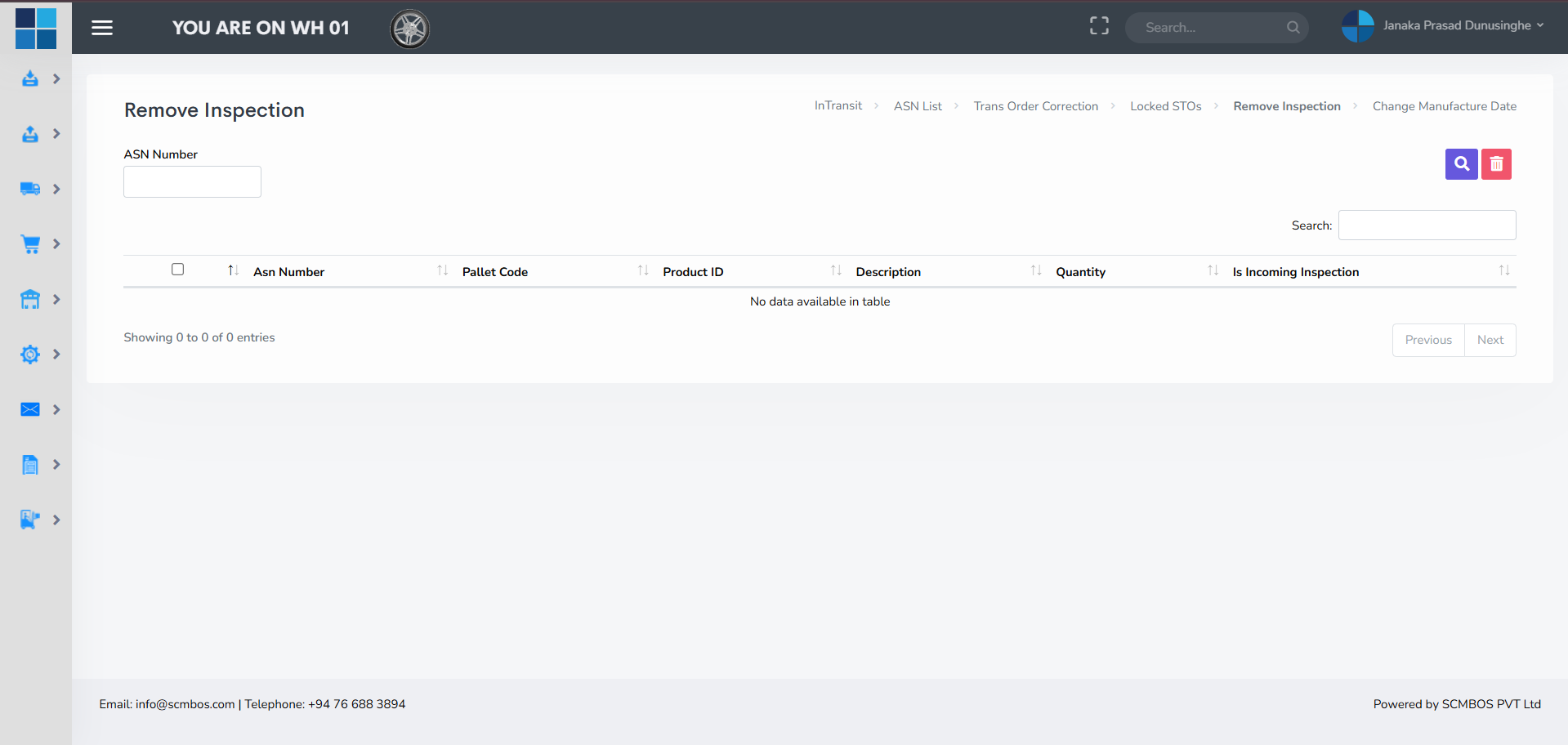
Remove Inspection
Some incoming products are marked for mandatory quality inspections. In exceptional cases — urgent shipments or trusted suppliers — a manager may remove the inspection requirement. This tool allows authorized users to remove the inspection flag, enabling inventory to be stored or dispatched immediately.
Controls: Strict permissions, audit log entry, and an optional temporary override window are best practices when removing inspections to balance speed and compliance.
Change Manufacture Date
This function lets users correct manufacturing or production dates associated with items when invoices or supplier data are incorrect. Accurate manufacture and expiry dates are critical for FEFO/FIFO picking, traceability, and regulatory compliance for perishable goods.
Always record reason for change and the supporting document (supplier correction or labelling), and restrict access to inventory controllers or supervisors.

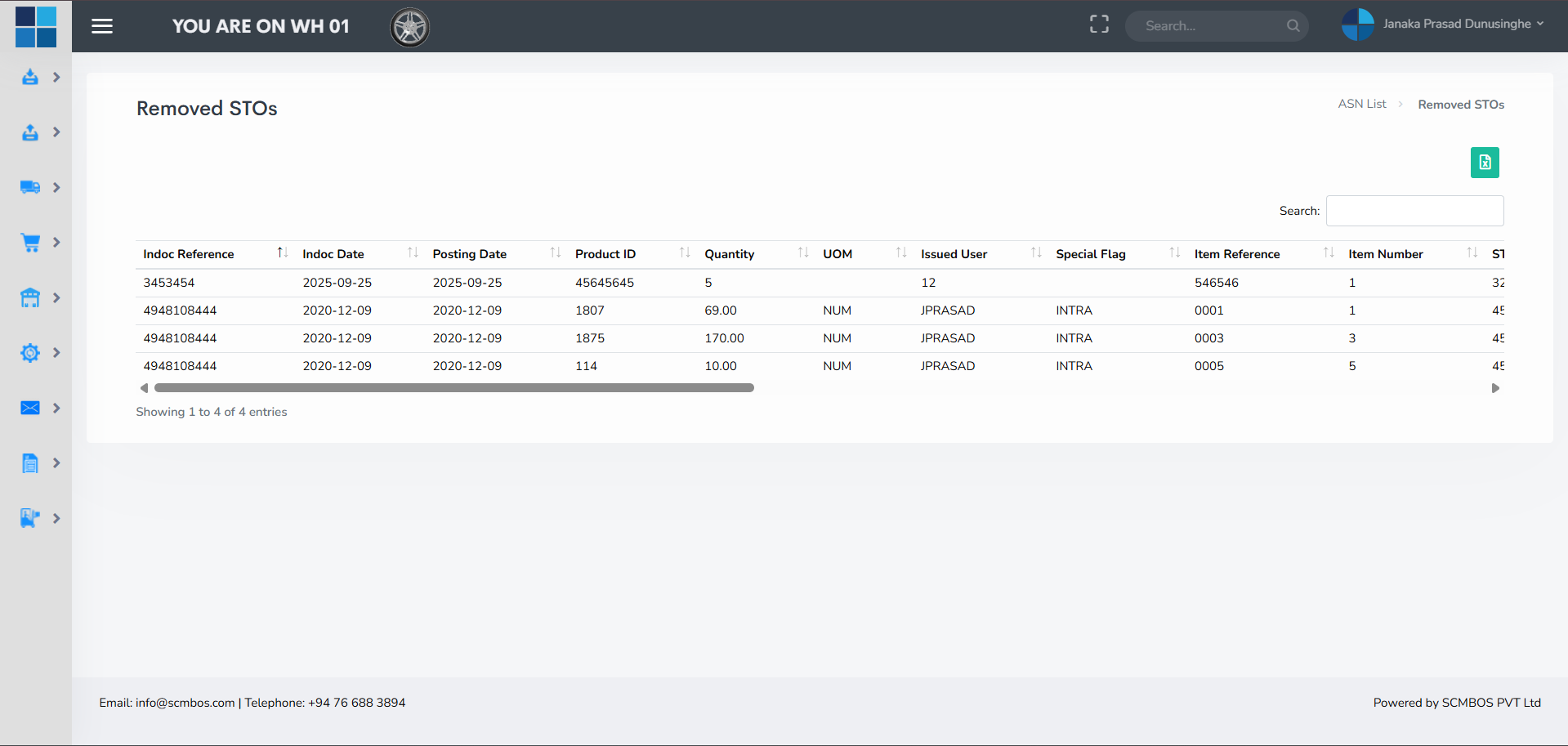
Removed STOs
Removed STOs is an audit-focused view of canceled, voided or deleted stock transfer orders. It helps reconciliation, enables post-mortem on why transfers were canceled, and provides accountability. Entries should include the user who removed the STO, timestamp and reason for removal.
Outbound — Overview
The Outbound module manages the process of fulfilling orders, from order release and picking to packing, loading and dispatch. It enforces allocation rules, verifies picks, manages wave or batch picking strategies, and ensures accurate documentation for carriers and customers. Tight integration with transport and ERP systems ensures timely shipping confirmations and billing.

Available OBD
Available Outbound Delivery (OBD) lists show customer orders that are ready for allocation and picking. This view is used by planners to check stock availability, priority customers, promised delivery windows and to decide how to batch orders for efficiency (e.g., wave or zone picking).

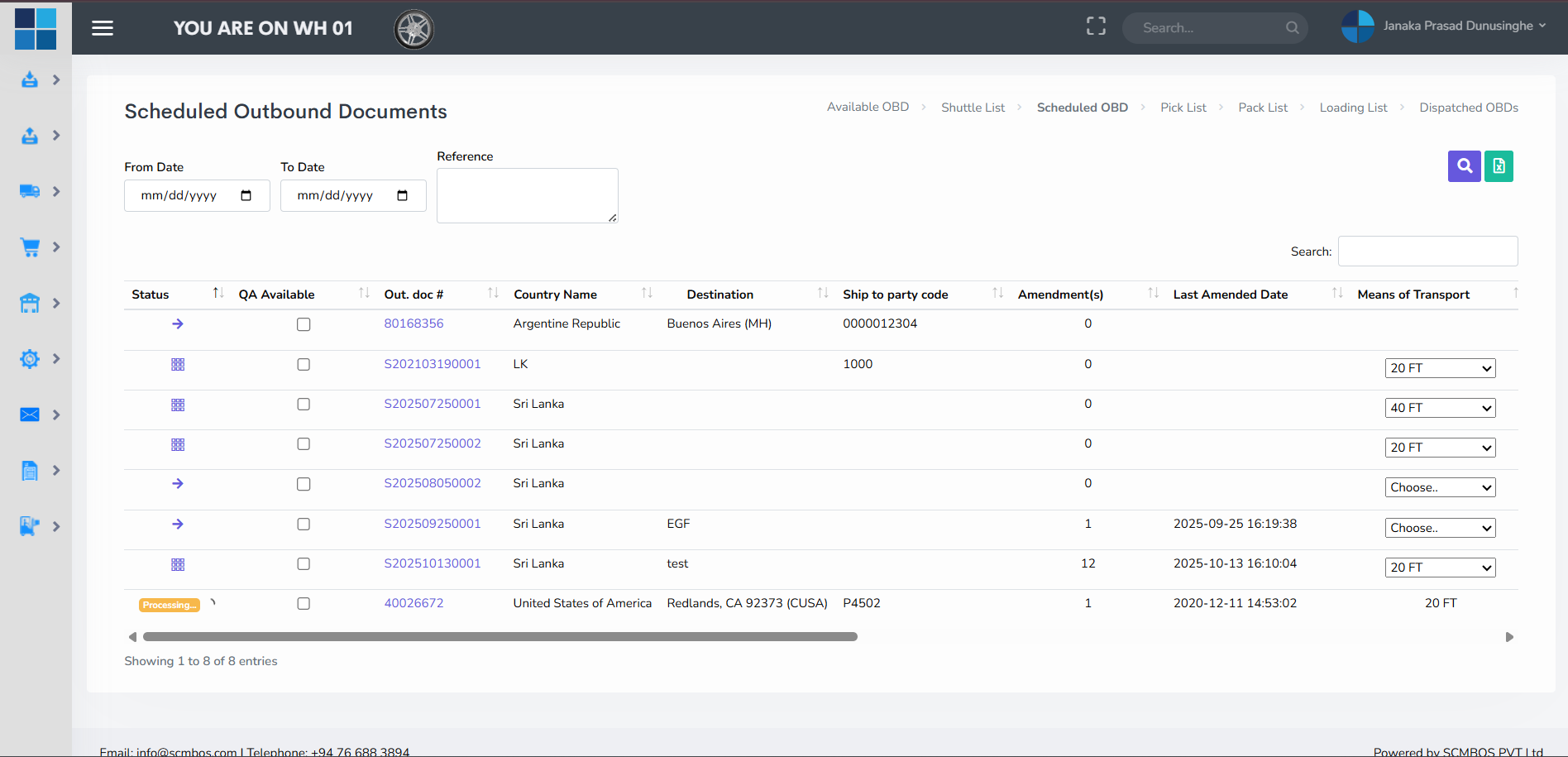
Scheduled OBD
Scheduled OBD displays orders that have been scheduled into picking waves or assigned to specific shifts and trucks. Scheduling includes assigning pickers, reserving packing stations, and allocating loading docks. This helps supervisors balance workloads and reduce last-minute rushes.
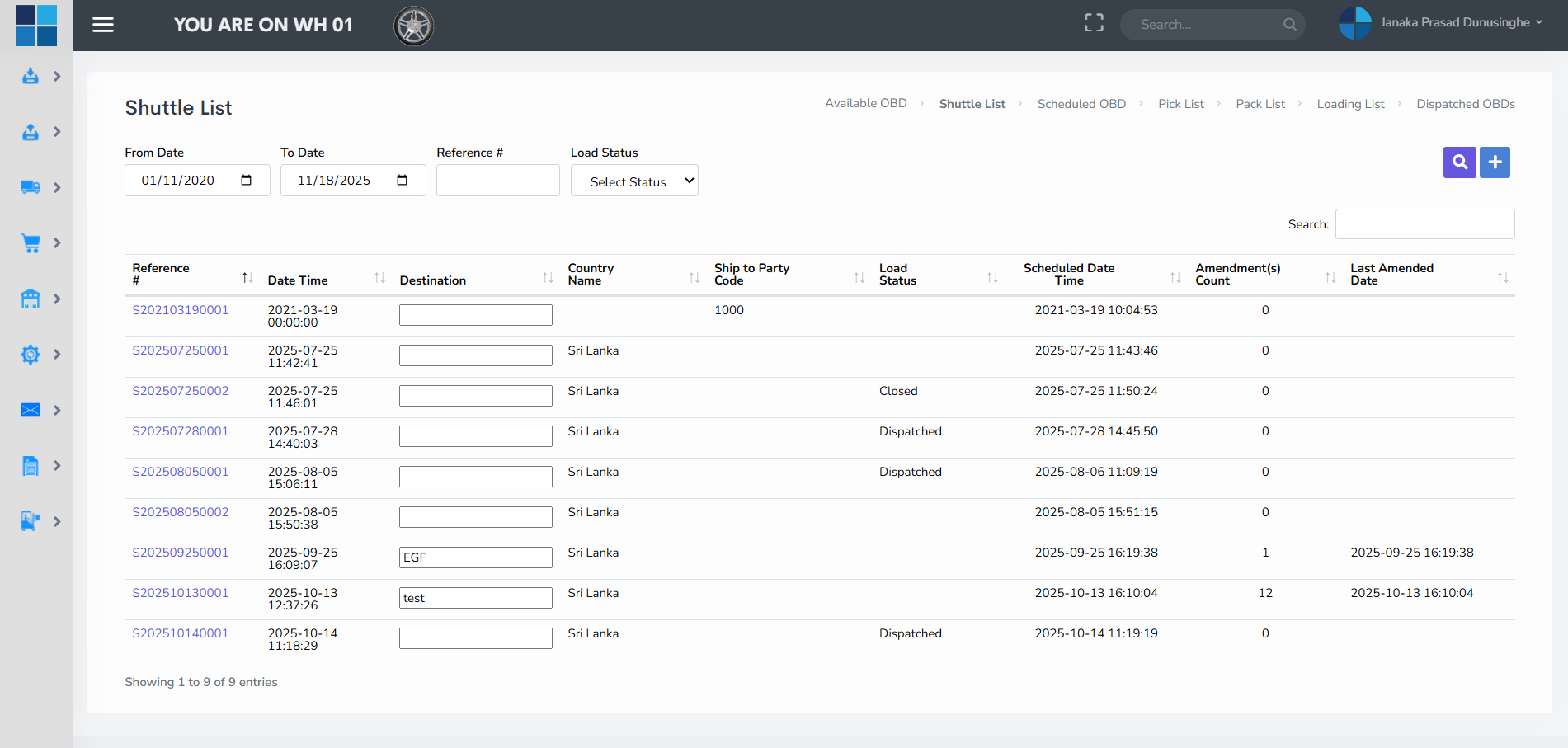
Shuttle List
The Shuttle List contains internal transfer tasks that move stock from bulk storage to staging or pick-face locations. Using a shuttle step prevents pickers from walking into bulk areas during peak times and centralizes material movement in controlled shuttles for greater efficiency.
Shuttle tasks should be optimized by demand forecasts and tailored to the warehouse layout (e.g., high-frequency SKUs get prioritized).
Pick List
The Pick List is the core working document for pickers and handheld devices. It contains SKU, required quantity, pick locations, batch/lot info and special handling instructions. Pickers confirm each pick, and the system updates inventory in real-time to avoid double-picking.
Picking strategies supported: single-order picking, batch/wave picking, zone picking, and cluster picking. Choose strategy based on order profile and throughput targets.

Pack List
The Pack List organizes packing tasks after picks are completed. It includes carton dimensions, required packaging material, special instructions (e.g., fragile), and label printing. A proper pack process verifies picked items, records weights, produces shipping labels, and updates the OBD status to ready-for-loading.

Loading List
The Loading List sequences orders for truck loading and records which orders are loaded onto which vehicles and at which dock. It helps dock supervisors avoid overloading, ensures the right sequence for deliveries (first drop — last loaded), and produces POD documentation when required.

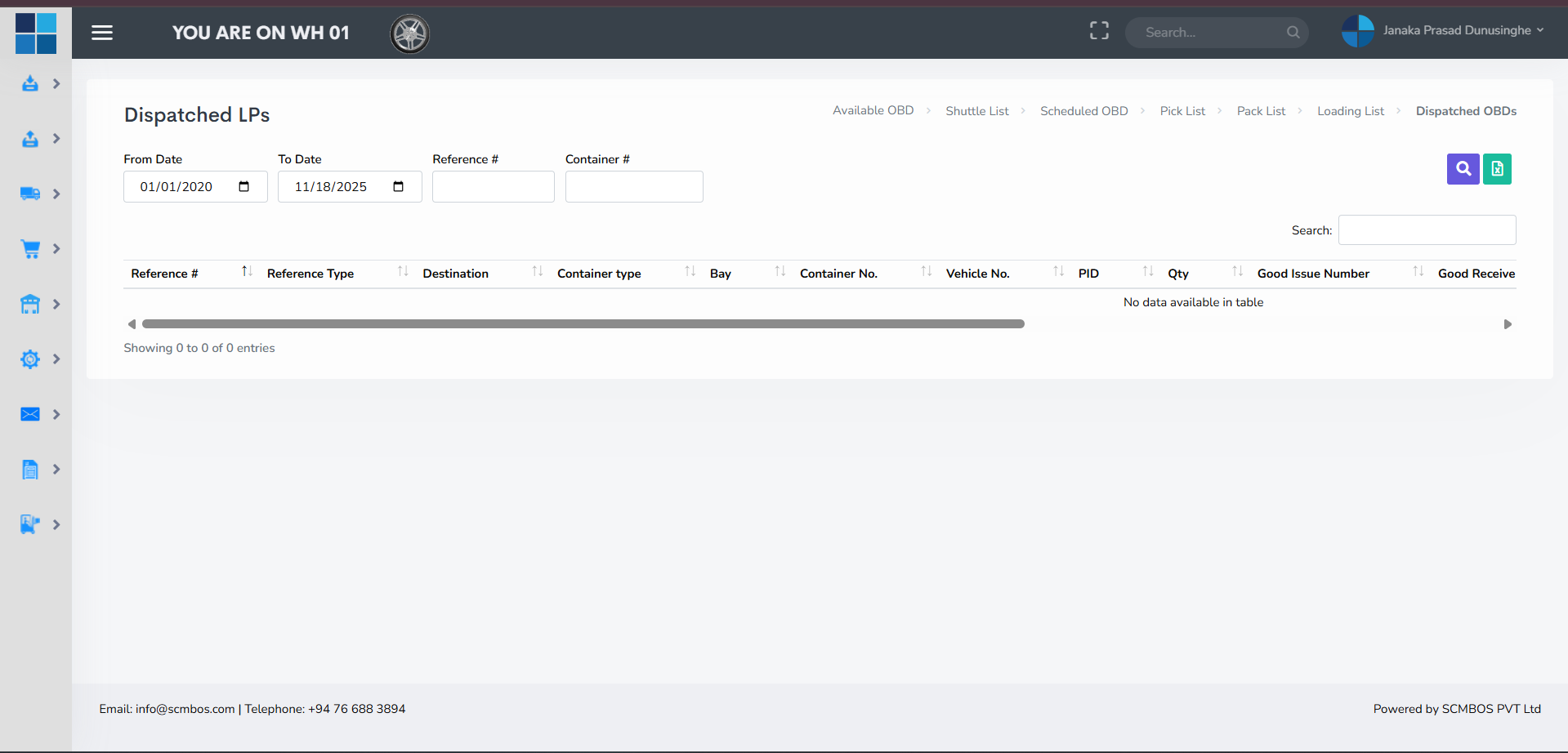
Dispatch OBD
Dispatch is the final outbound confirmation: goods leave the premises and inventory is updated to reflect shipped quantities. After dispatch, the system can generate customer notifications and push shipping confirmations to ERP or TMS systems. Make sure proof-of-delivery (POD) workflows are linked for returns and claims.
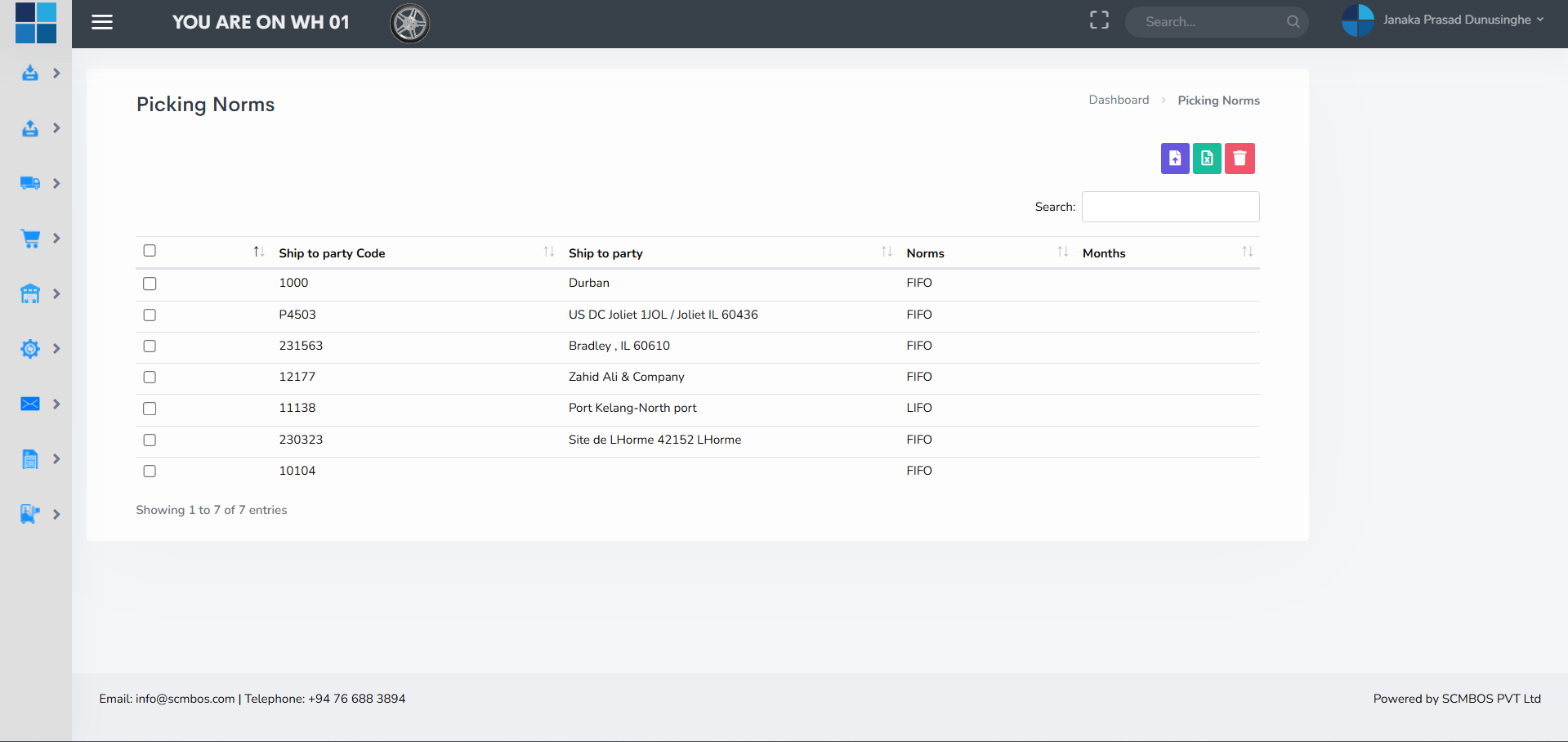
Picking Norms
Picking Norms are a set of rules and performance benchmarks for picking operations. They define standard pick times, pack-to-order thresholds, maximum travel distance, and acceptable error rates. Norms are used to set KPIs for staff and tune picking strategies.
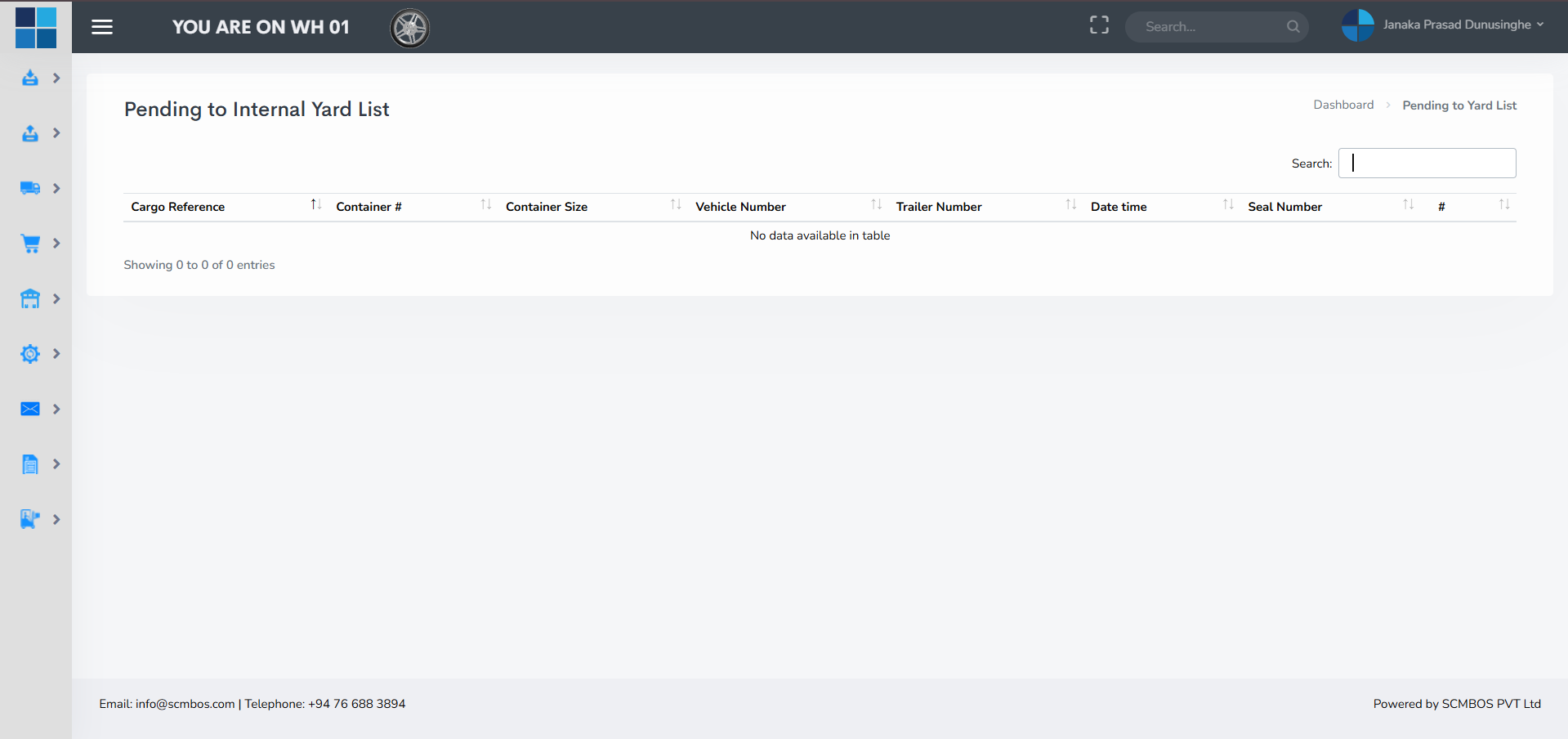
Pending to Yard List
Orders in the Pending to Yard List have completed picking/packing and are staged waiting to be moved to the vehicle yard or loading bay. This list is important for yard management and for avoiding missed departures when trucks arrive early or late.
Transport Manager — Overview
Transport Manager centralizes vehicle handling, gate processing, and approvals. It coordinates with outbound operations to ensure trucks are registered, loaded correctly, and granted gate passes. Integration with TMS or carrier portals provides tracking and ETAs to customers.

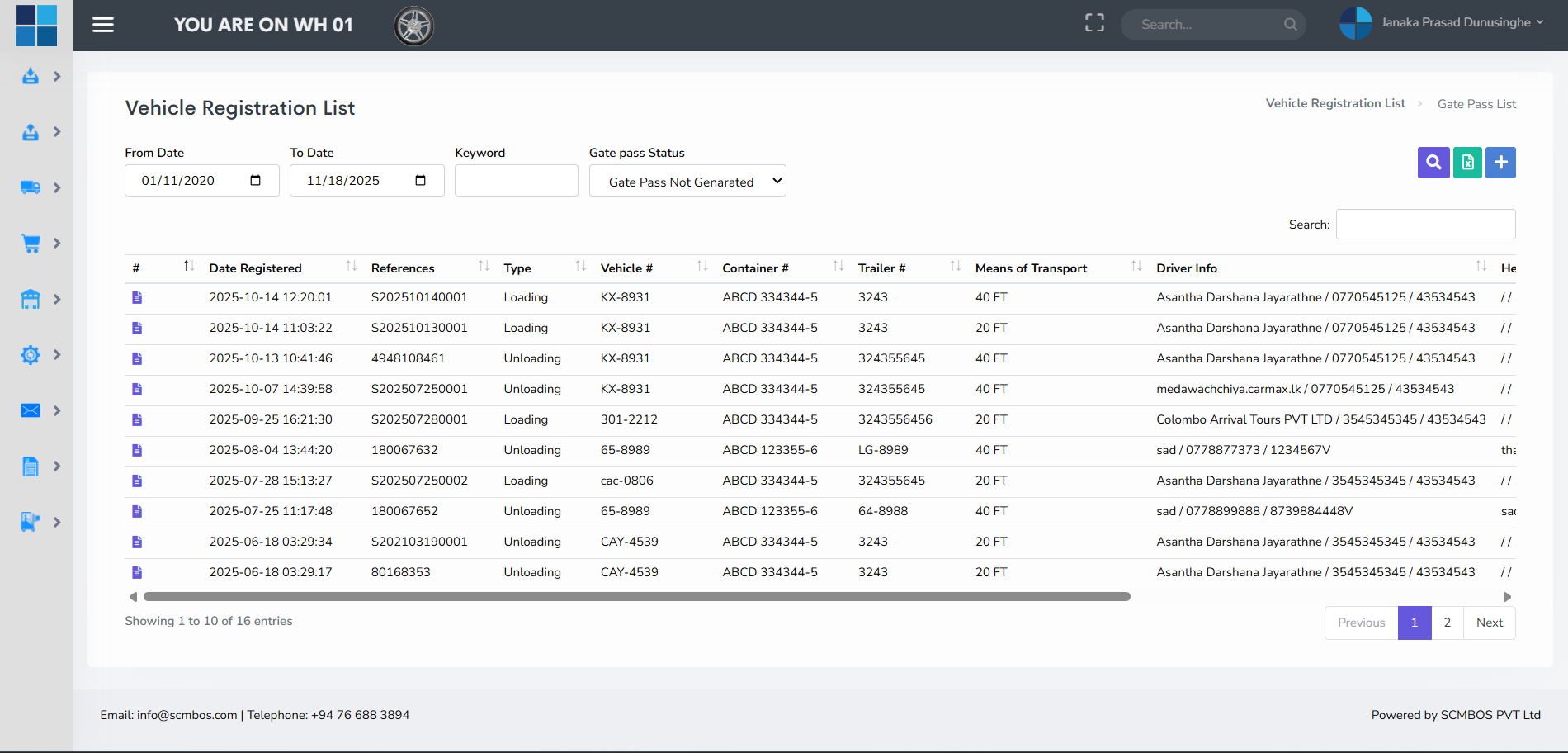
Vehicle Registration
Vehicle Registration records truck and driver information for arrivals and departures. Registration captures vehicle plate number, carrier details, driver ID, contact information, expected arrival or departure purpose, and the document references they carry (waybills, manifests).
Security and compliance: Tie registrations to gate passes and safety checks; if a vehicle lacks registration, deny entry until validated.
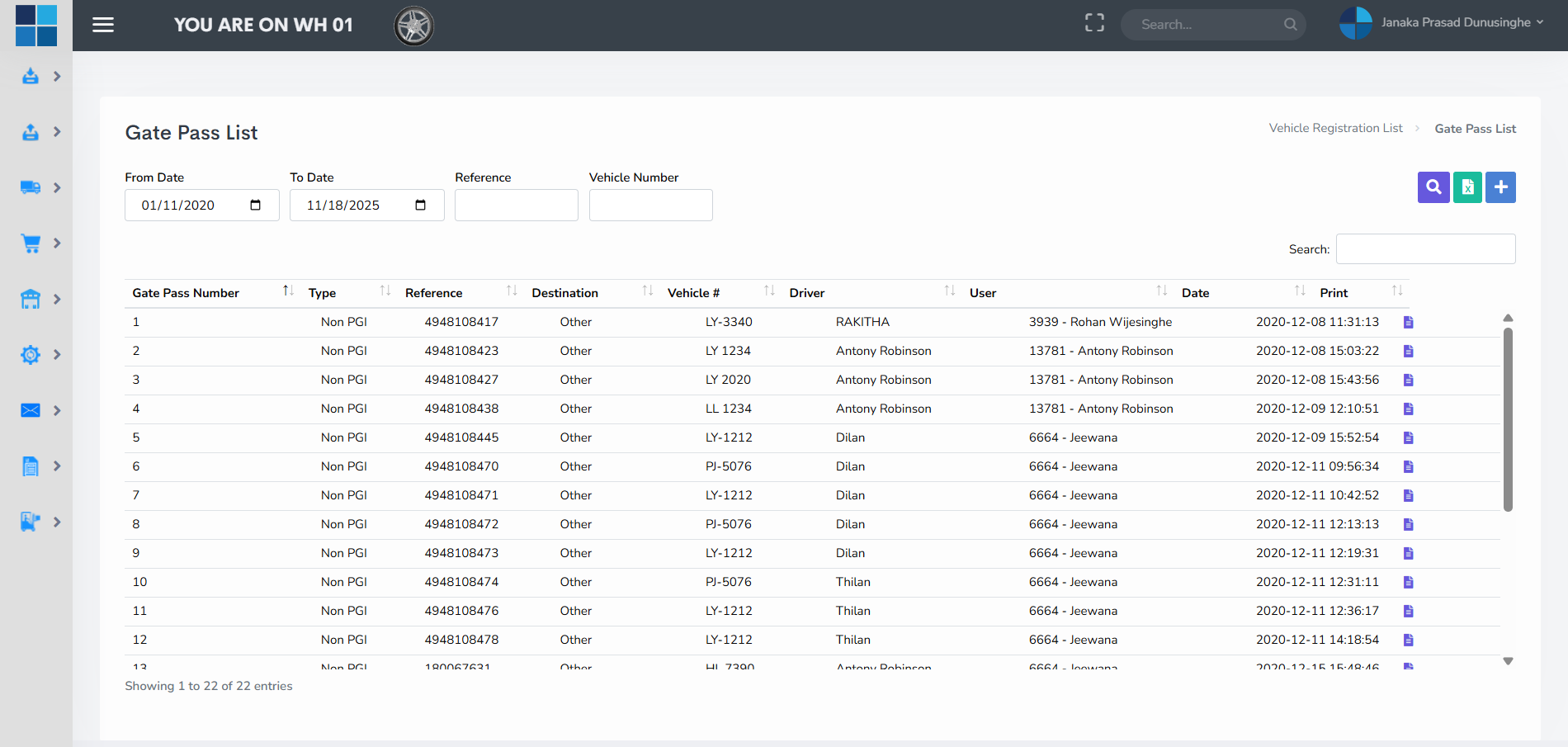
Gate Pass
Gate Pass is the authorization to move materials or equipment across the warehouse gate. It can be generated for finished goods leaving for customers, incoming returns, or movement of assets. The gate pass should include items autorized, quantities, responsible staff, and approval history.
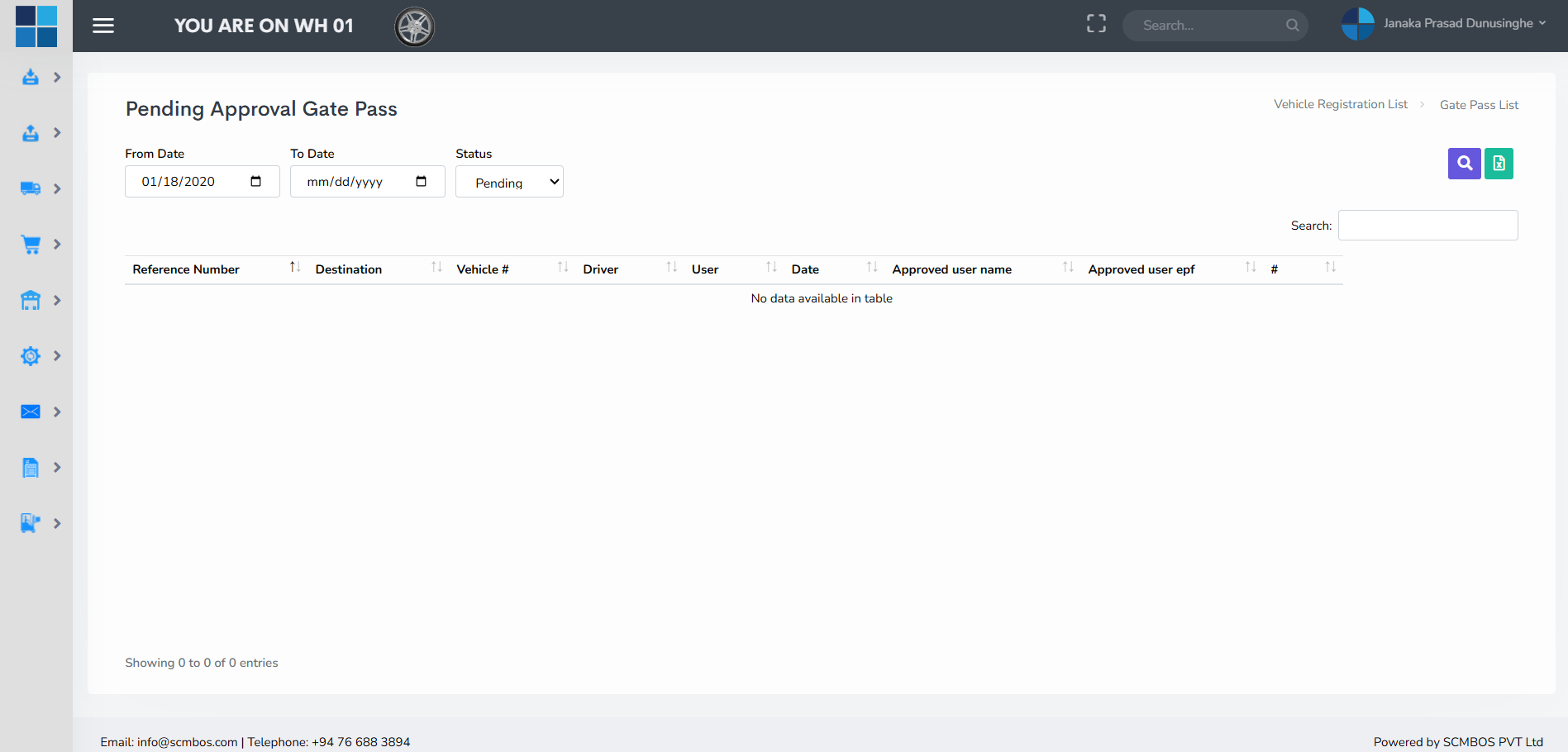
Pending Approval List
Certain vehicle entries, gate passes or transport documents require manager approval. This panel shows outstanding approvals and their reasons. Quick approvals reduce bottlenecks at the gate, but ensure an audit trail is always kept.
Inventory — Overview
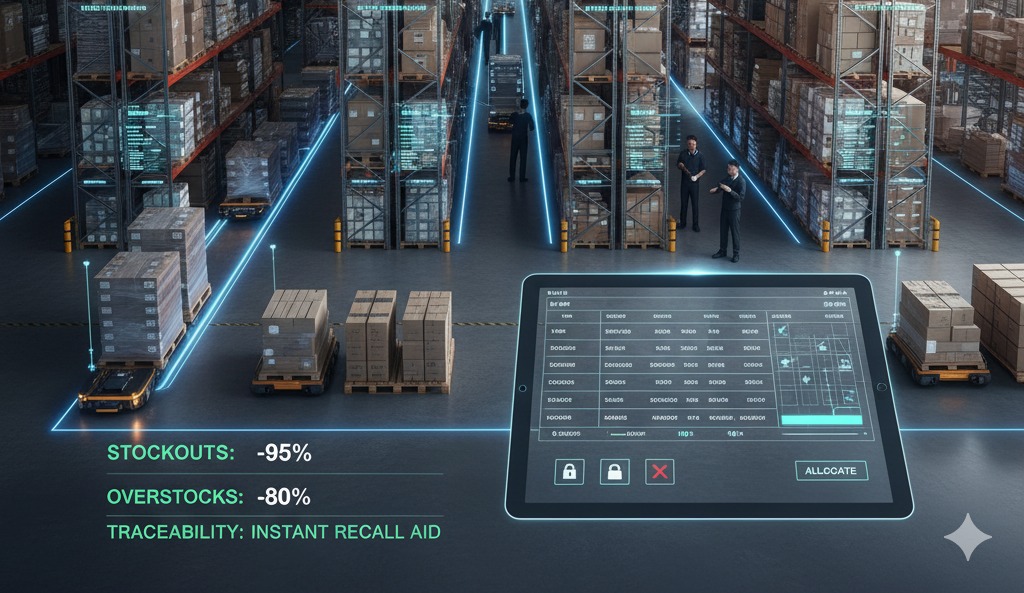
The Inventory module provides live visibility over all stock, by pallet, location, lot/batch, and status. It supports stock reservations, holds, quarantines, and dedicated allocations. Good inventory control reduces stockouts, overstocks, and aids traceability for recalls.
Pallet Inventory
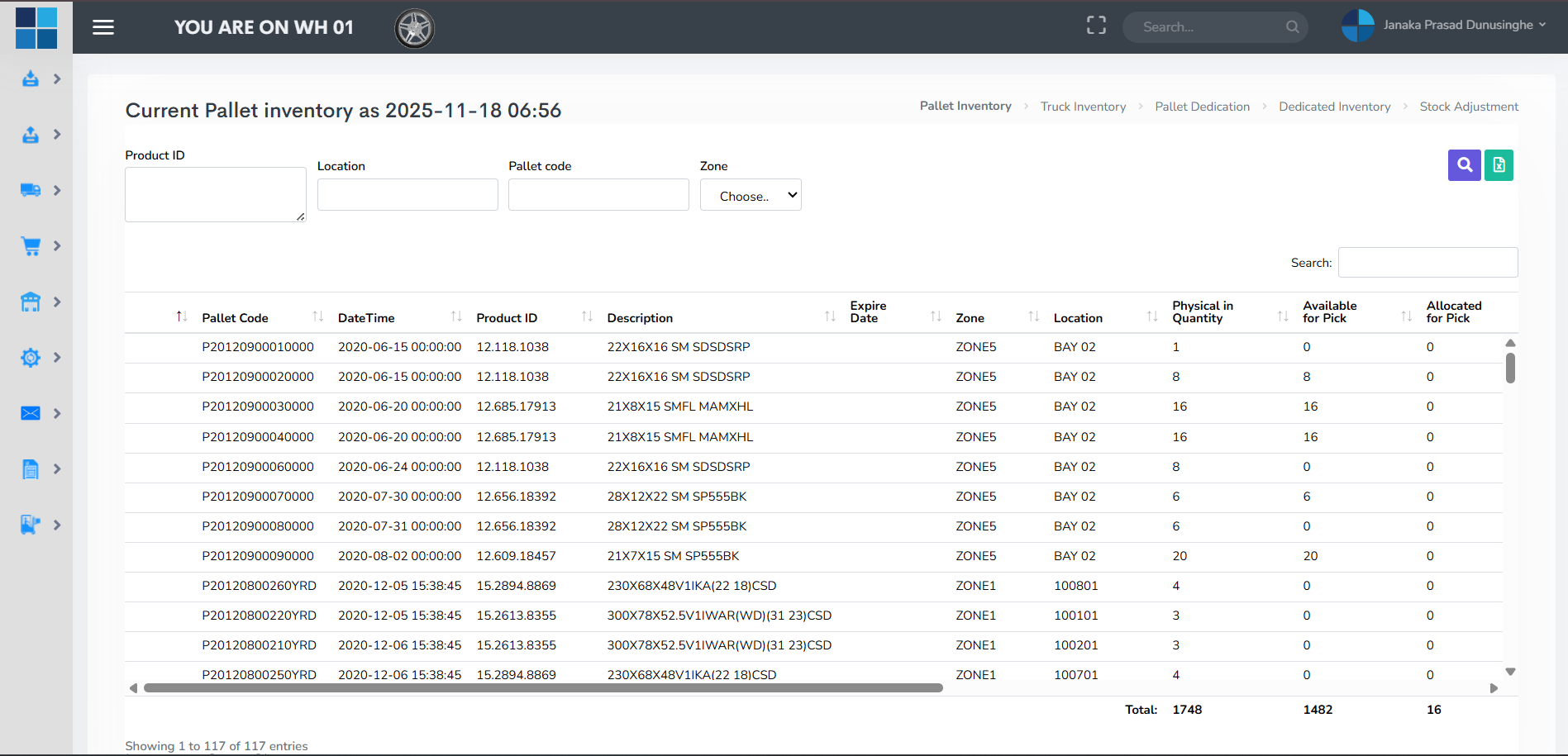
Pallet Inventory lists each pallet's content, quantity, SKU, lot numbers and precise location. Use this view for cycle counts, locating stock for picking, and verifying pallet-level movements. It’s essential for fast resolution of customer queries about availability and for planning pallet consolidation.
Truck Inventory
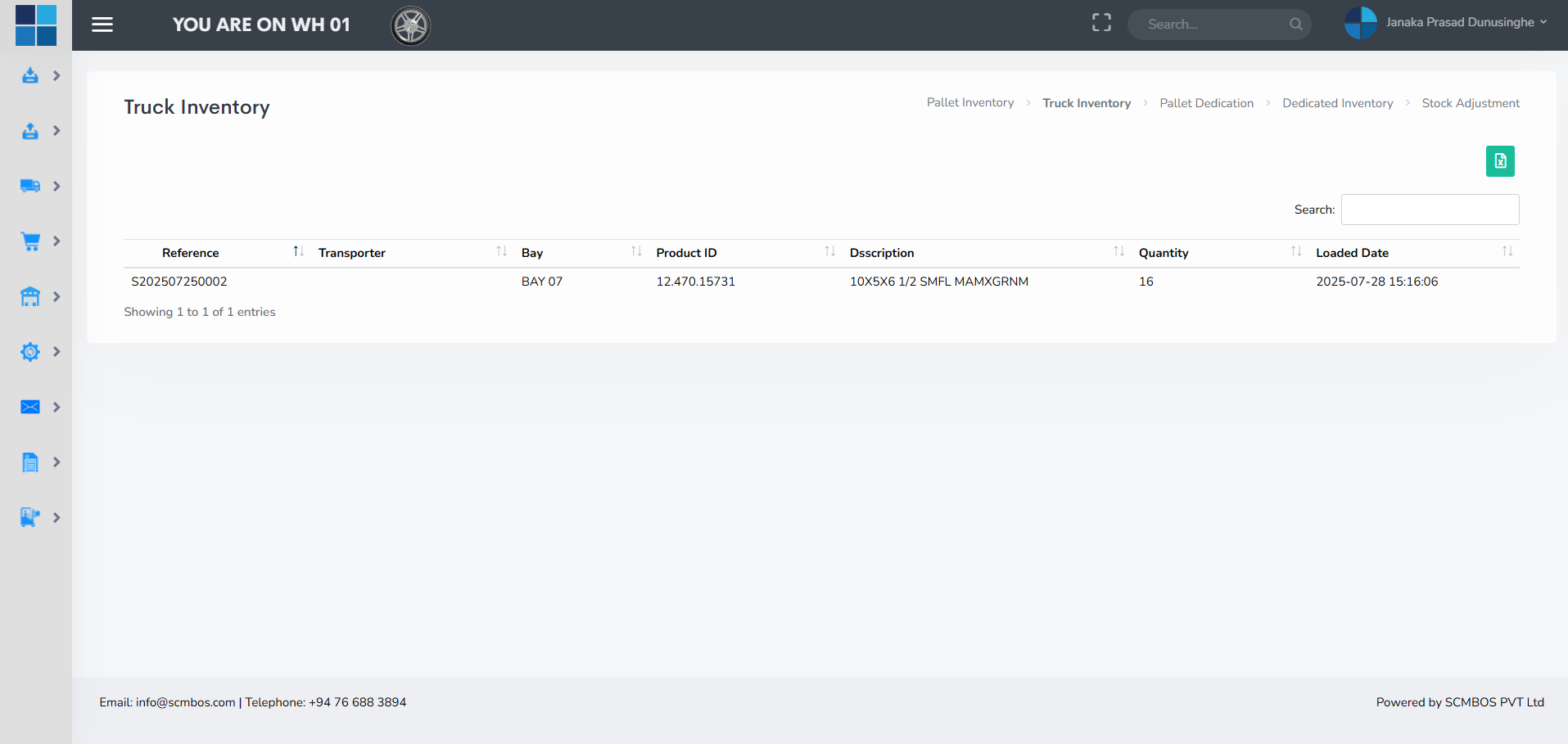
Truck Inventory tracks goods that are currently within trucks — either inbound waiting to be unloaded or outbound waiting for dispatch. This prevents duplicate stock counts and ensures accurate visibility of goods in transit on premises.
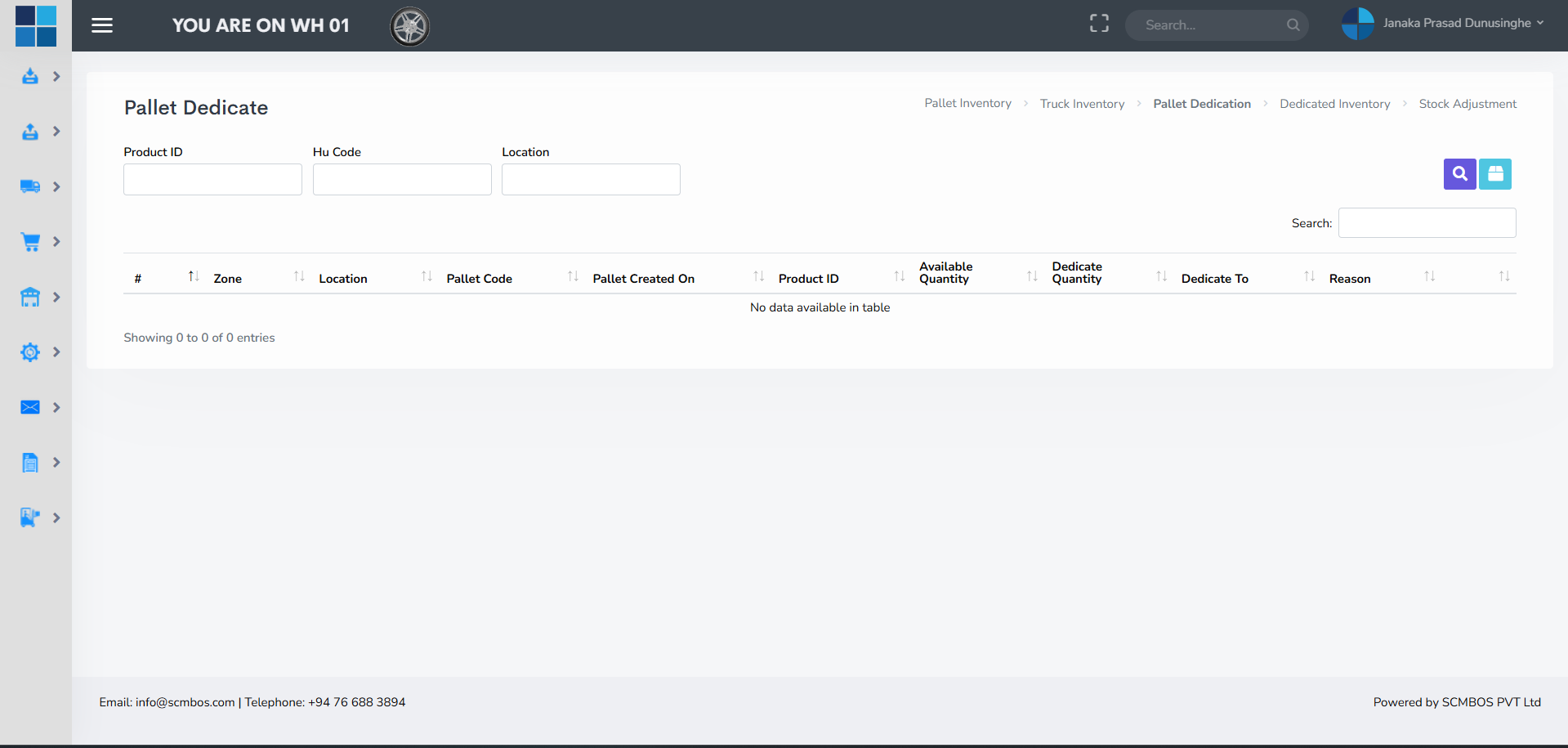
Pallet Dedication
Pallet Dedication reserves certain pallets for customers or specific use cases (e.g., high-value or regulated items). Dedicated pallets are not available for general allocation and help ensure service levels where guaranteed stock is required.
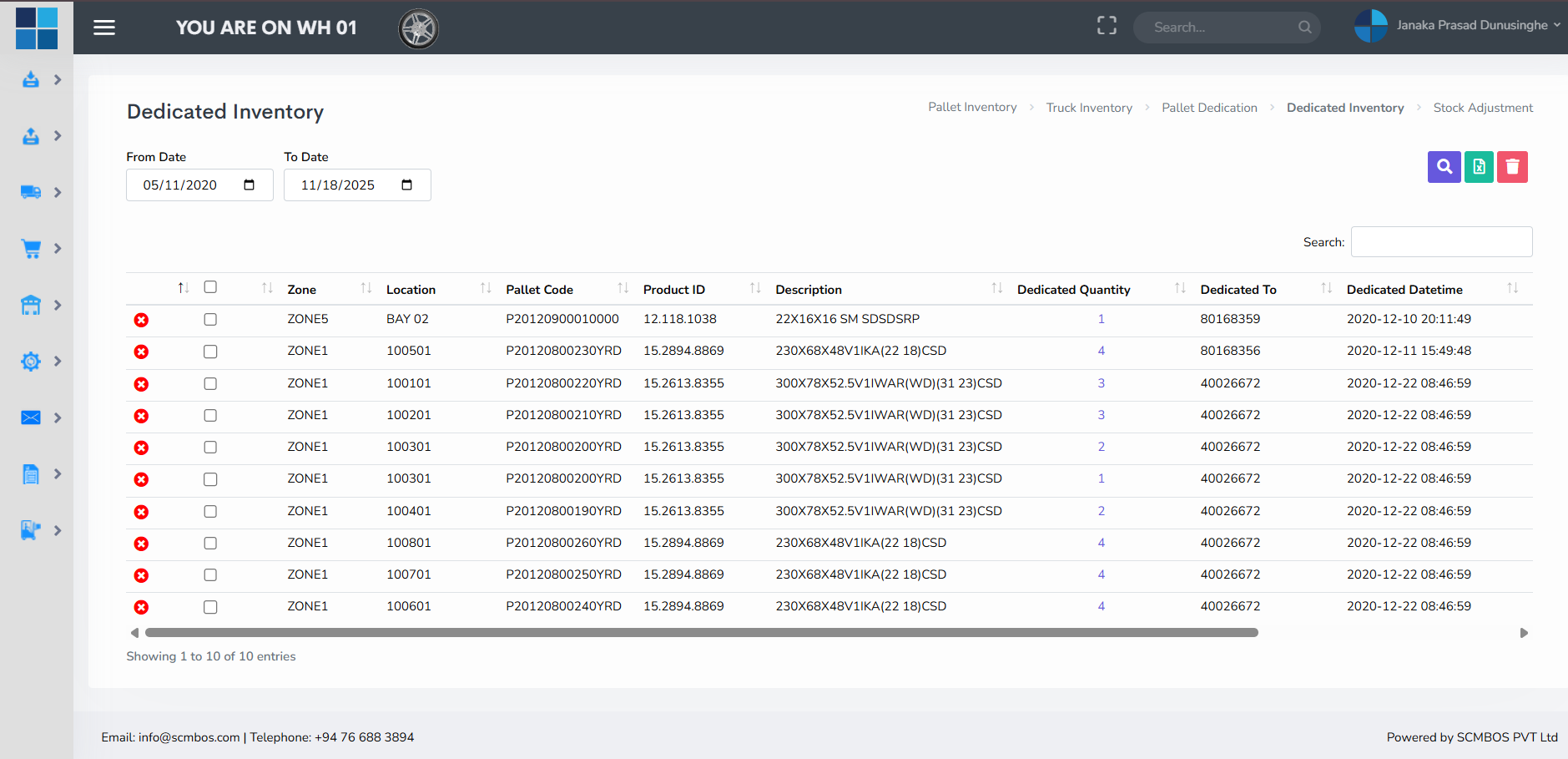
Dedicated Inventory
Dedicated Inventory displays all stock that is reserved for particular customers, contracts, or orders. It is used to avoid accidental allocation to other customers and to meet contractual SLAs related to exclusive stock reservation.
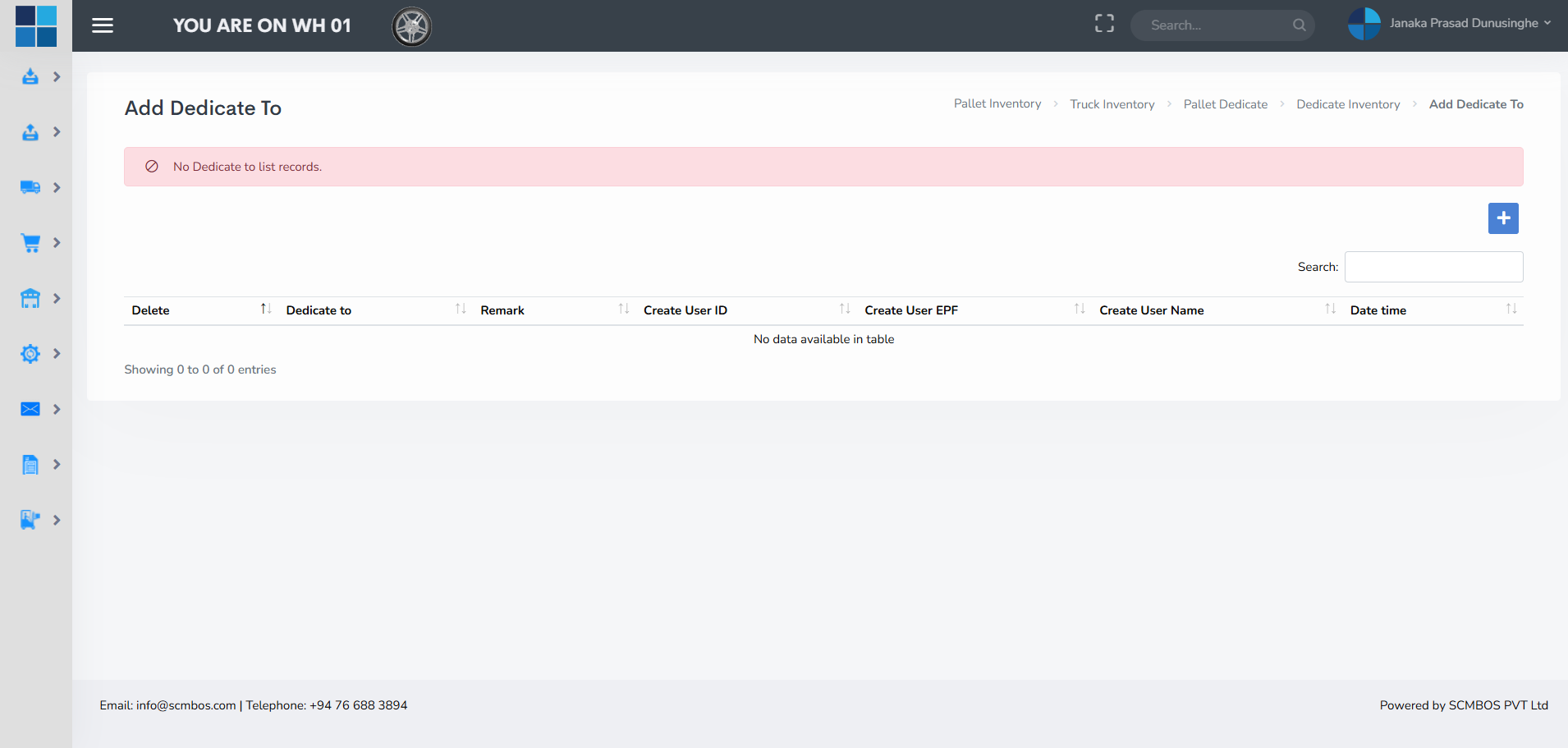
Pallet Dedicate To
This configuration allows mapping dedicated pallets to client accounts, order groups, or storage zones. It is a rule-based assignment that automates the dedication process when criteria are met (e.g., customer X’s inbound pallets automatically dedicate to zone Y).
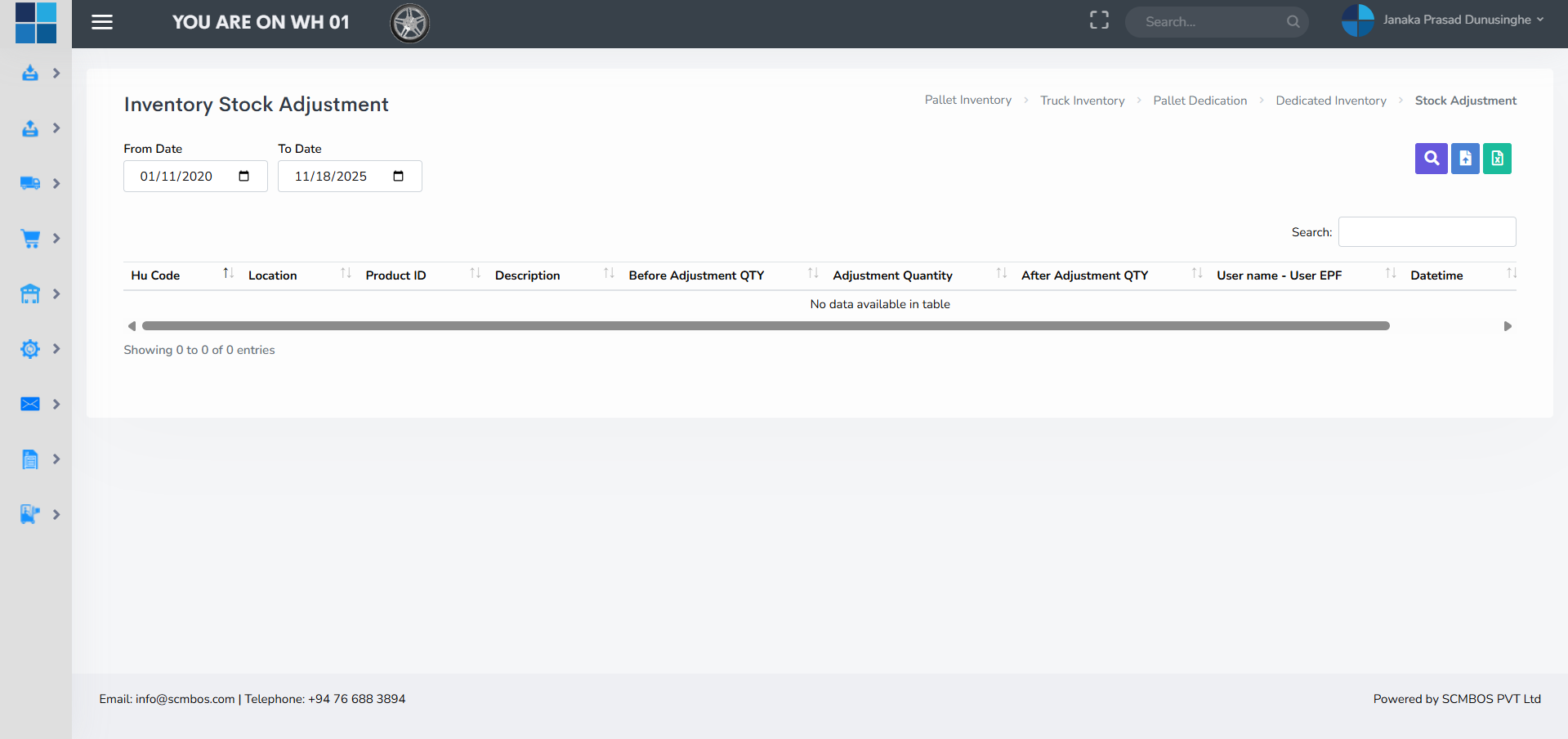
Stock Adjustment
Stock Adjustment is used to correct on-hand quantities after cycle counts, shrinkage, damage or audit discrepancies. Adjustments must capture reason code, counted quantity, previous quantity, user who performed the adjustment, and relevant documents for audit.
Warehouse — Overview
The Warehouse module covers movement tasks, task assignment, consolidation, and tracking of internal operations. It acts as the central coordinator for M2M moves, consolidation and task-based workflows which are consumed by handhelds and the task dispatcher.

putaway
The SCMBOS system automatically recommends the most suitable storage location for incoming goods based on predefined rules and real-time warehouse conditions. The system evaluates factors such as product dimensions, weight, storage type, turnover class, temperature requirements, and current bin availability. Using this logic, the WMS suggests the optimal put-away location that maximizes space utilization, supports efficient picking, and ensures proper stock rotation. This automated recommendation reduces manual decision-making, improves accuracy, and enhances overall warehouse productivity.
M to M (Move to Move)
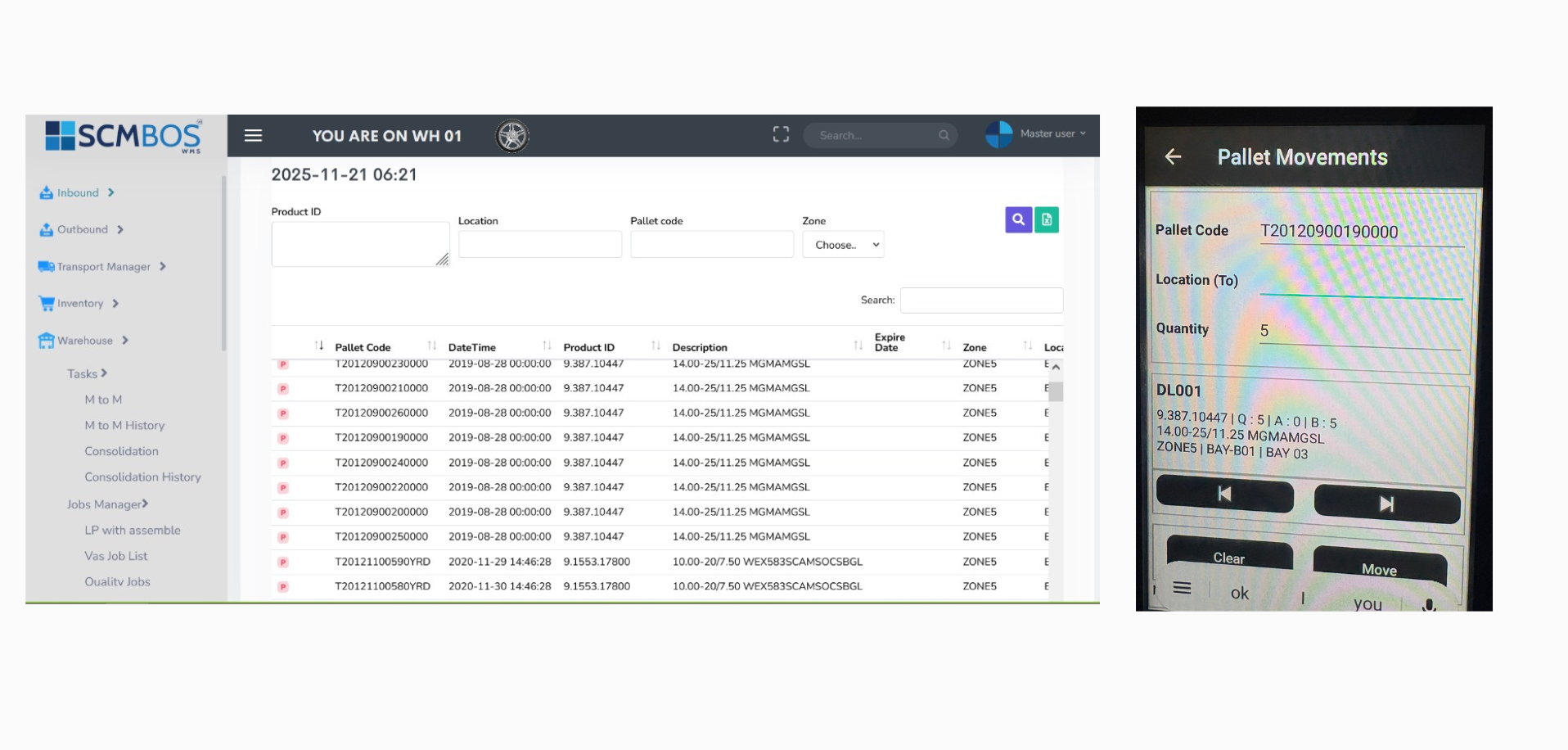
M to M provides a streamlined way to move stock from one location to another (e.g., bulk → pick-face). This supports space optimization, rebalancing stock distribution, and preparing stock for picking. The operation records a source location, destination, pallet or item identifiers, and quantity.

M to M History
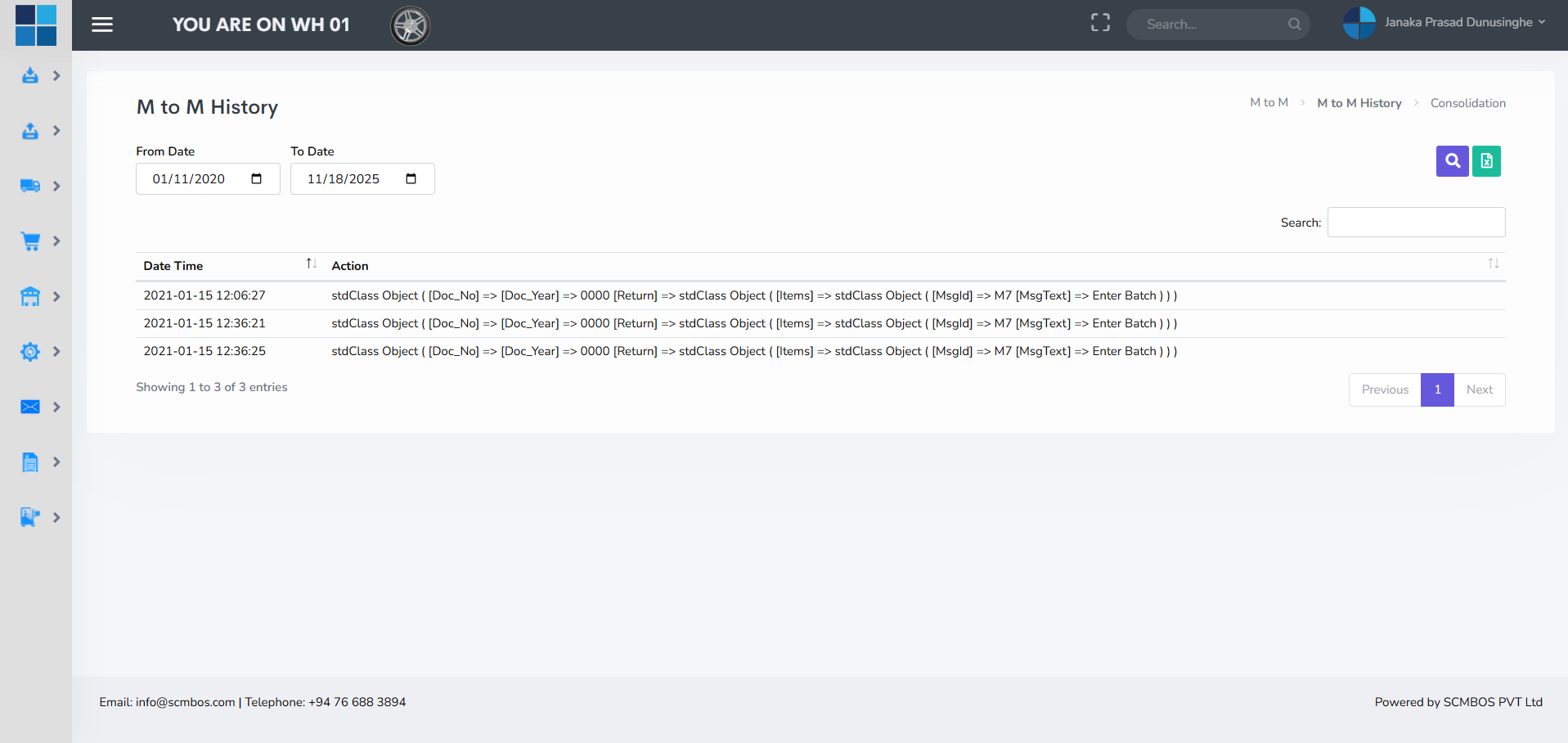
The M to M History holds a complete audit of move transactions including user who executed the move, timestamps, source and destination, and reasons. This is a primary tool for investigating inventory discrepancies.
Consolidation
Consolidation merges partial pallets, cartons or cases into fewer units to reduce storage fragmentation and improve pick efficiency. Consolidation rules can prefer same SKU and FIFO/FEFO order when merging items. It is especially useful after multiple small receipts of the same SKU.

Consolidation History
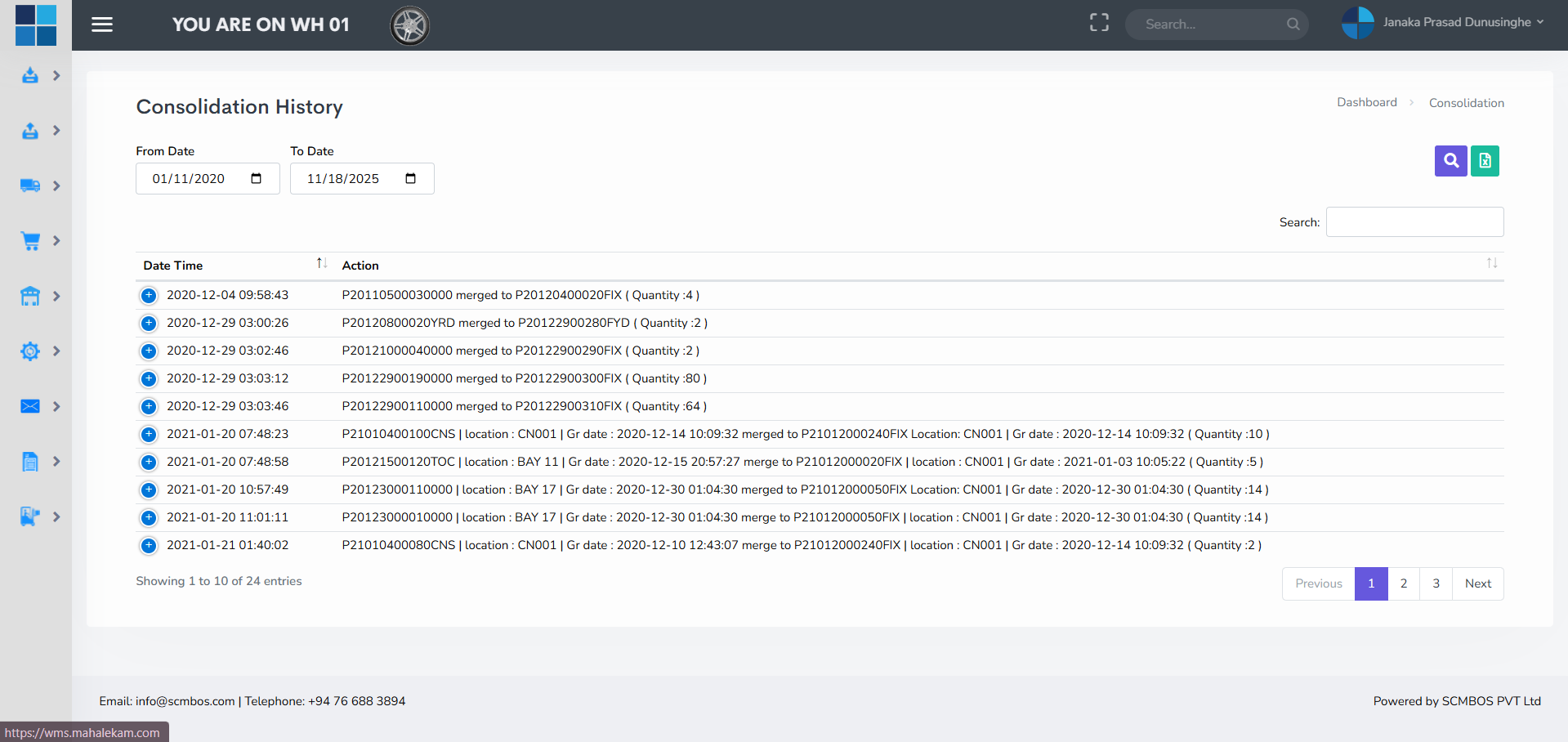
The history captures each consolidation event for traceability and for reversing consolidation if required. It includes source pallets, resulting location/pallet, quantities and responsible user details.
Jobs Manager — Overview
Jobs Manager coordinates non-standard operational jobs such as assembling, labeling, value-added services (VAS) and quality-related tasks. Each job has a lifecycle: create → assign → execute → close. Jobs often integrate with the task engine and may require extra materials or workstation assignment.

LP with assemble
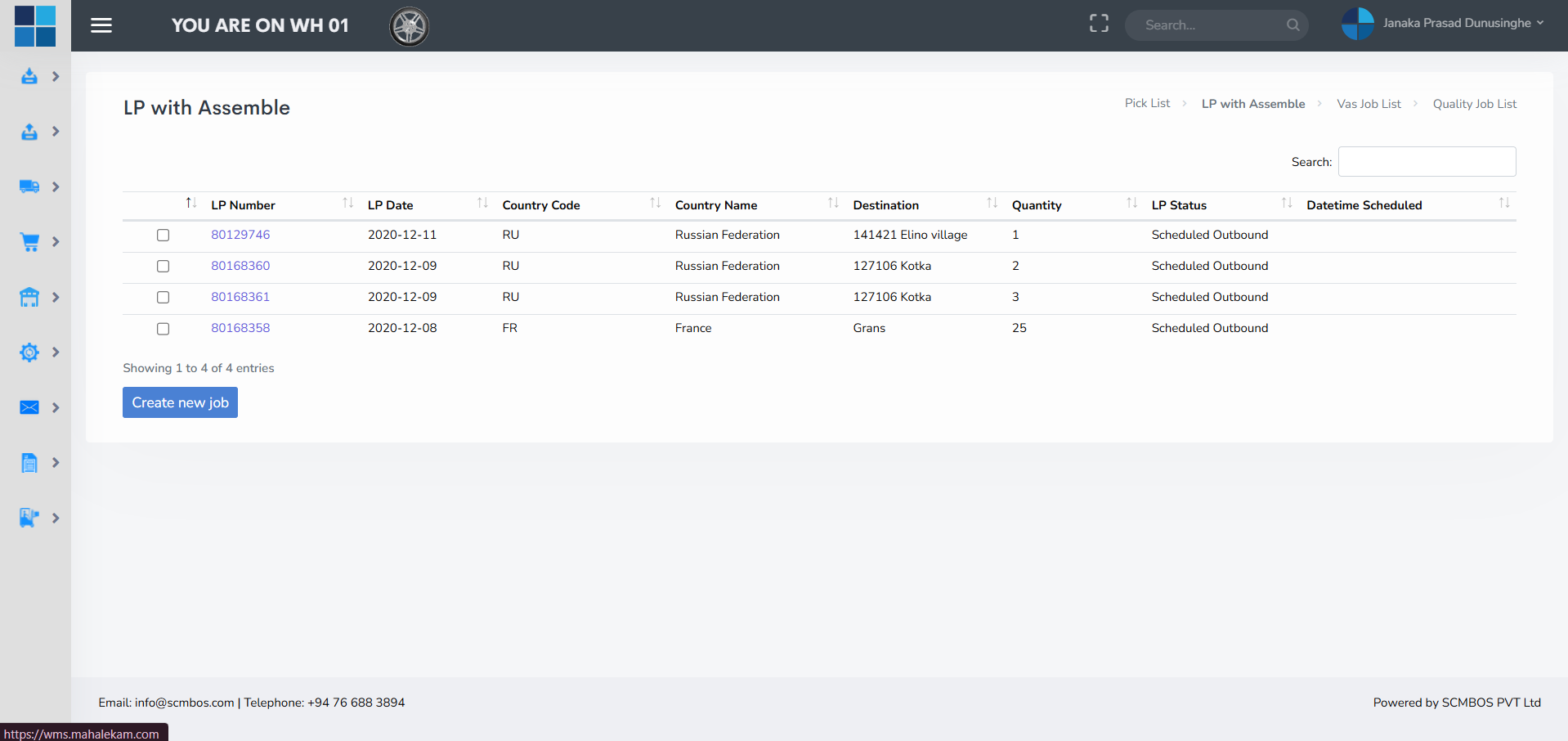
This function handles Label Printing combined with small assembly workflows. For example, combining multiple items into a single bundle and printing the new label. The flow captures component SKUs, quantities consumed, new SKU created and any kitting BOM applied.
VAS Job List
Value Added Service jobs such as re-labelling, repacking, kitting or promotional packing are created and tracked here. Each VAS job includes special instructions, required materials, assigned workstation and expected turnaround time.

Quality Job
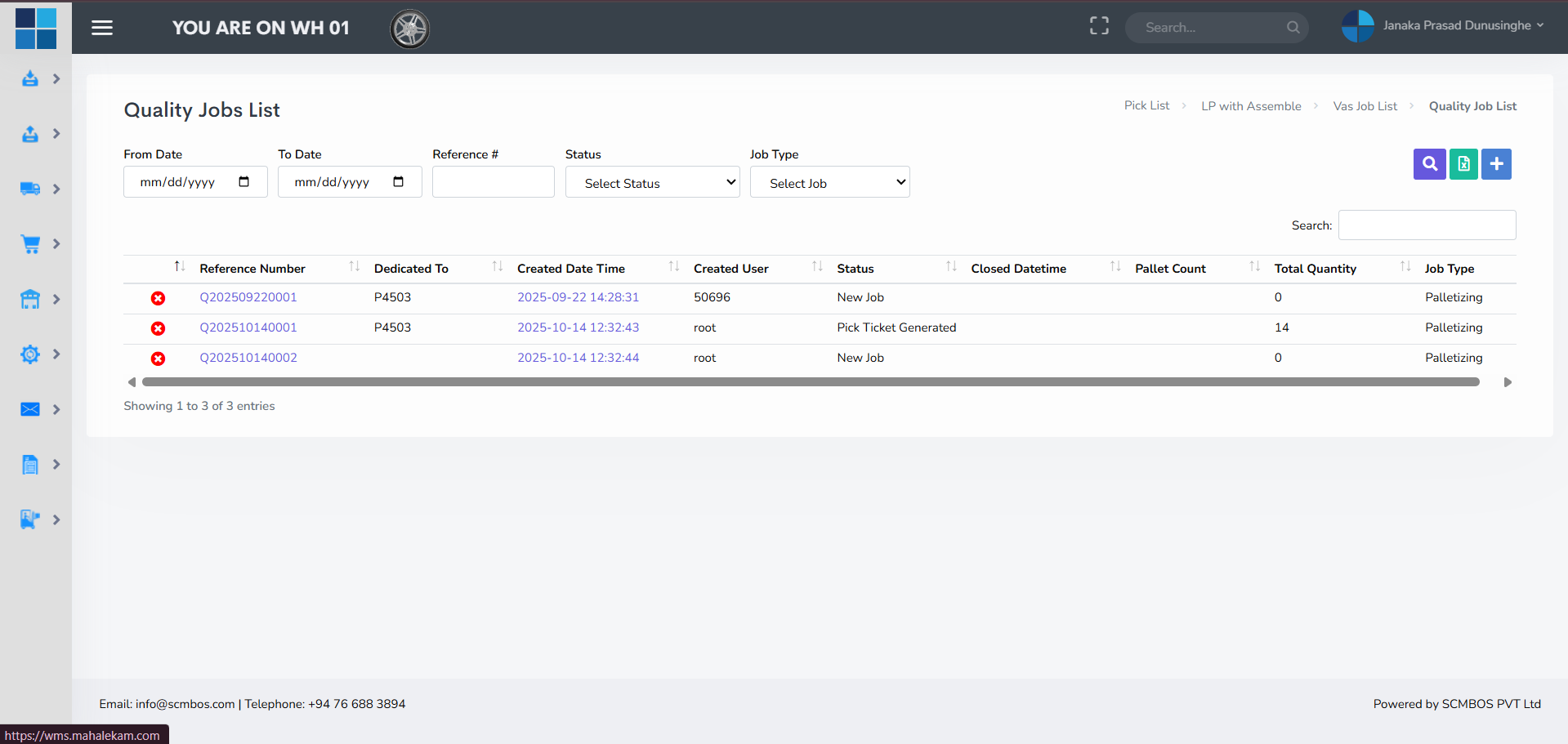
Quality Jobs list required inspection activities, retesting, sampling or rework tasks. The module keeps track of QC status (pass/fail), holds for rejected lots, quarantine instructions, and links to corrective action records.
Replenishments — Overview
Replenishment ensures pick faces and forward areas are stocked in line with demand. It can be set as automatic (triggered by thresholds) or manual. Proper replenishment minimizes picker travel time and prevents stockouts on pick faces.

Pick Phase
The Pick Phase manages replenishment priorities: which SKUs should be moved to pick-face first and when. It uses min/max rules, demand forecasts and current pick-face quantities to trigger movement tasks from bulk storage.

Client Labels
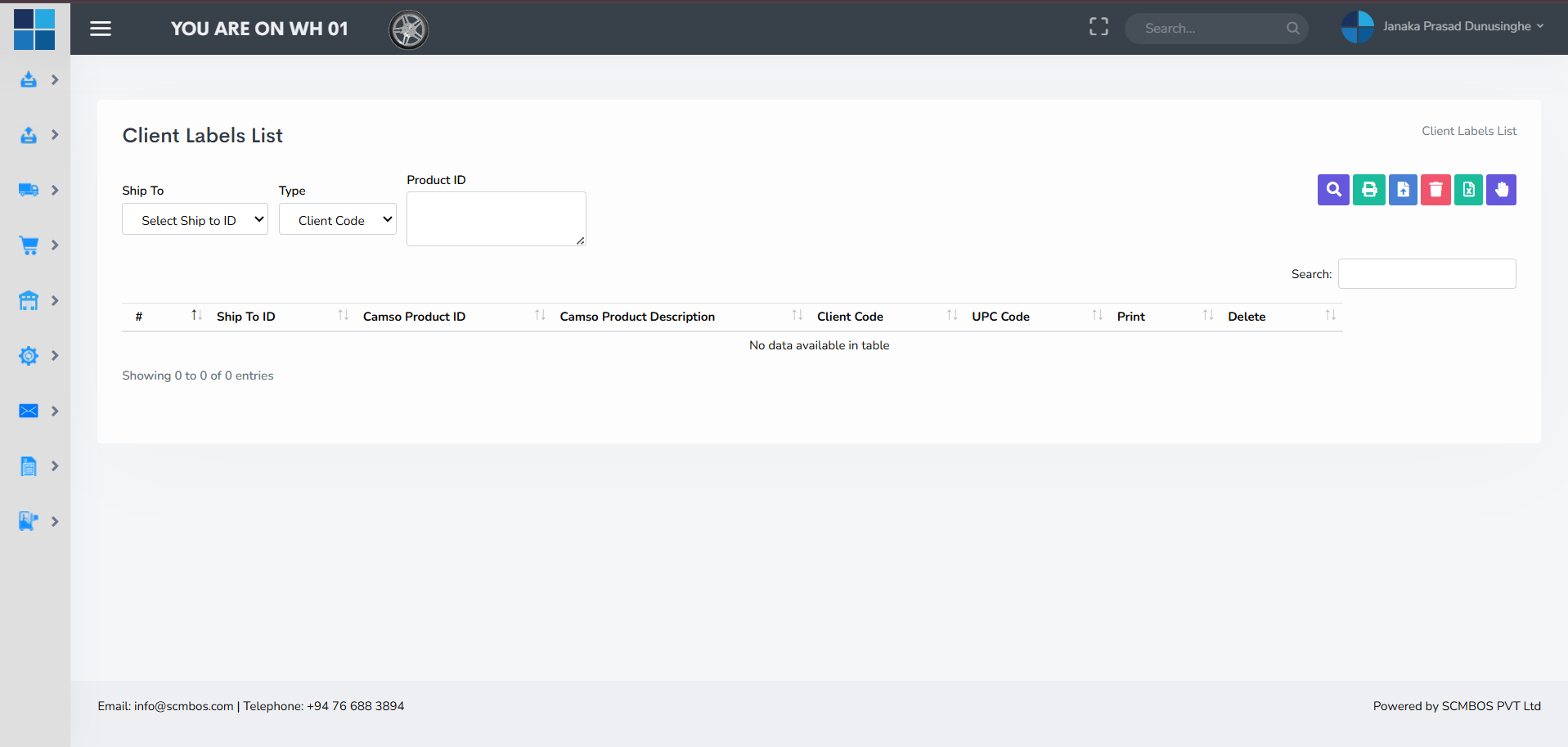
Client Labels stores label templates and rules specific to customers. Custom labels may include client barcodes, nested information (batch/lot), and compliance fields. Label templates are applied during packing, replenishment or special handling to meet client requirements.
Configuration — Overview
Configuration defines operational rules, stacking constraints, and system parameters that drive behavior across all modules. Proper configuration reduces manual errors and helps the WMS operate consistently when scaled or modified.

Stacking Norms
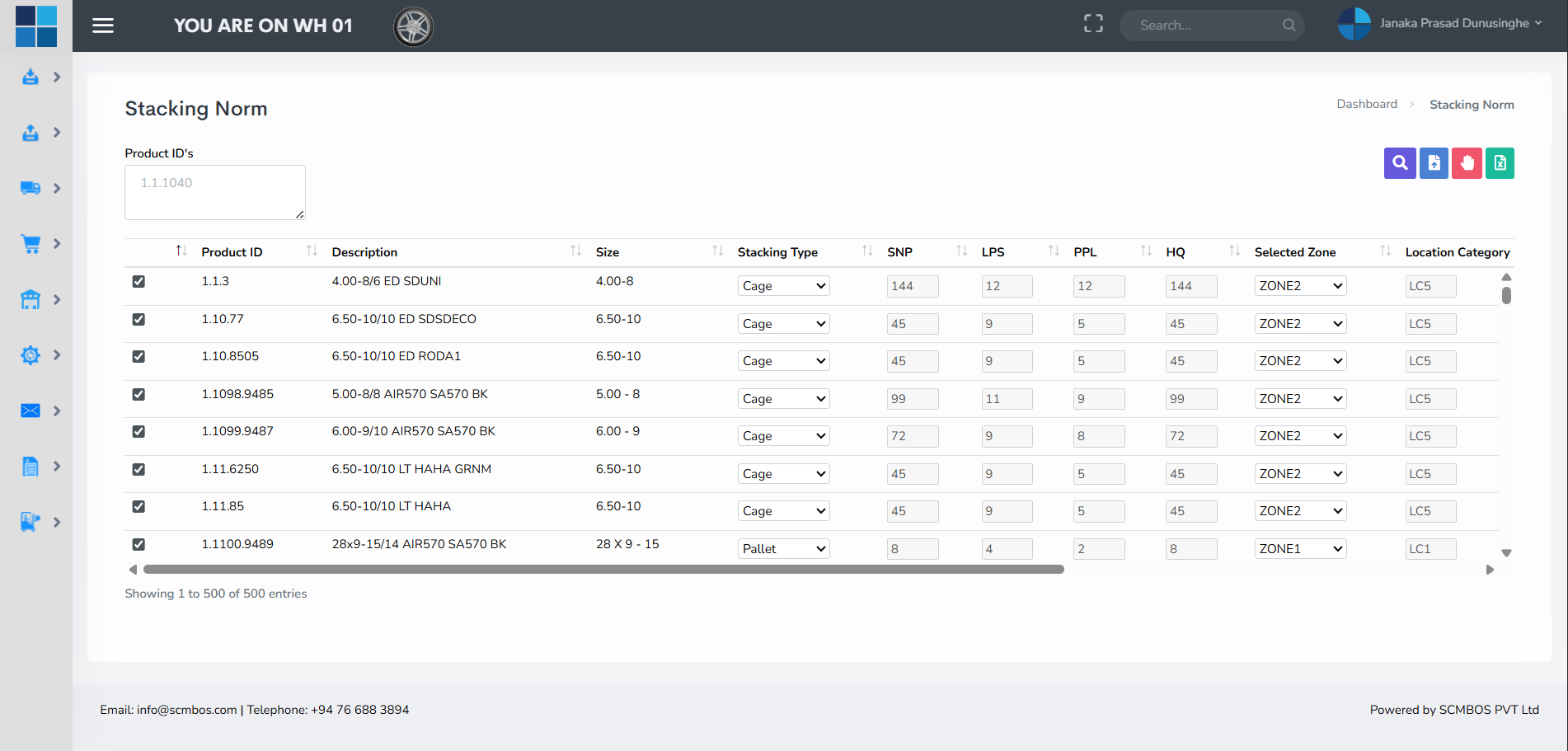
Stacking Norms capture rules such as maximum stacking height, weight per pallet, compatibility rules for stacking different SKUs and safety constraints for fragile or hazardous goods. Maintain these rules to prevent damage and accidents.
Zone
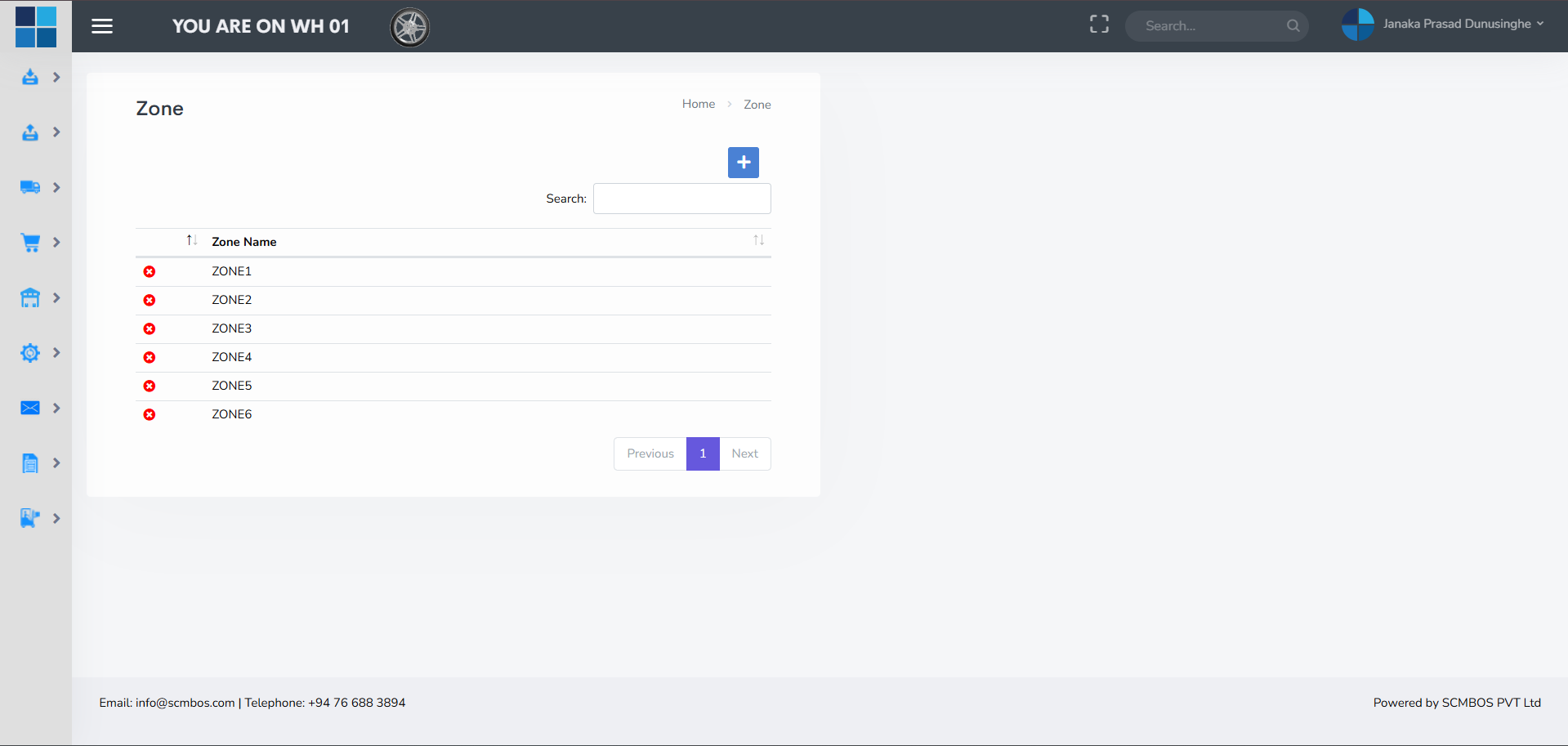
Zones are broad areas within the warehouse that define storage environment and handling type (e.g., Ambient, Chilled, Freezer, Bulk, Pick-Face, Quarantine). Zones allow tailored workflows and rules for each area — such as temperature control for chilled zones.
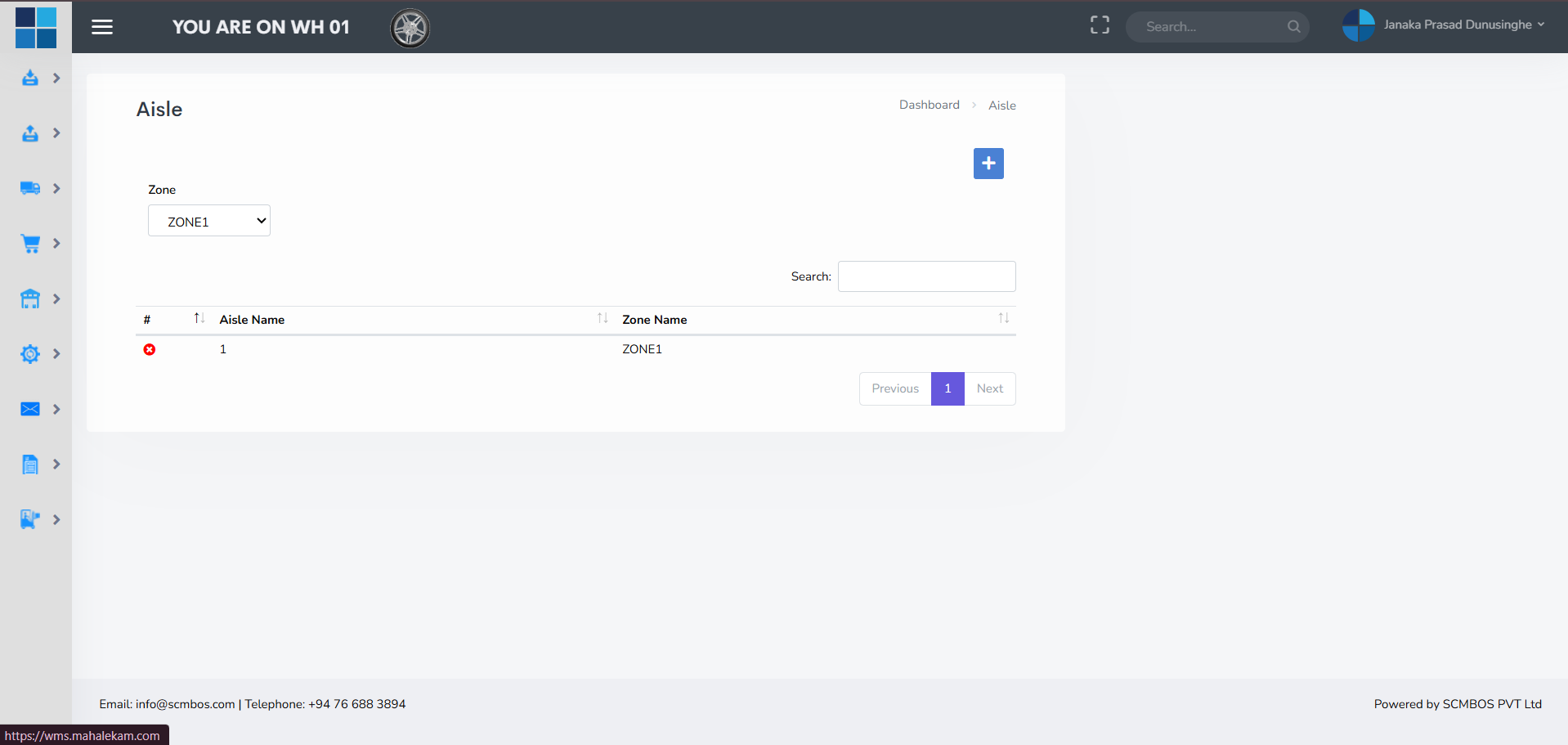
Aisle
Aisles are physical long lanes within zones that organize racks and pallet positions. Defining aisles precisely improves routing and helps handheld devices guide pickers efficiently. Aisles are the logical grouping between zones and individual locations.
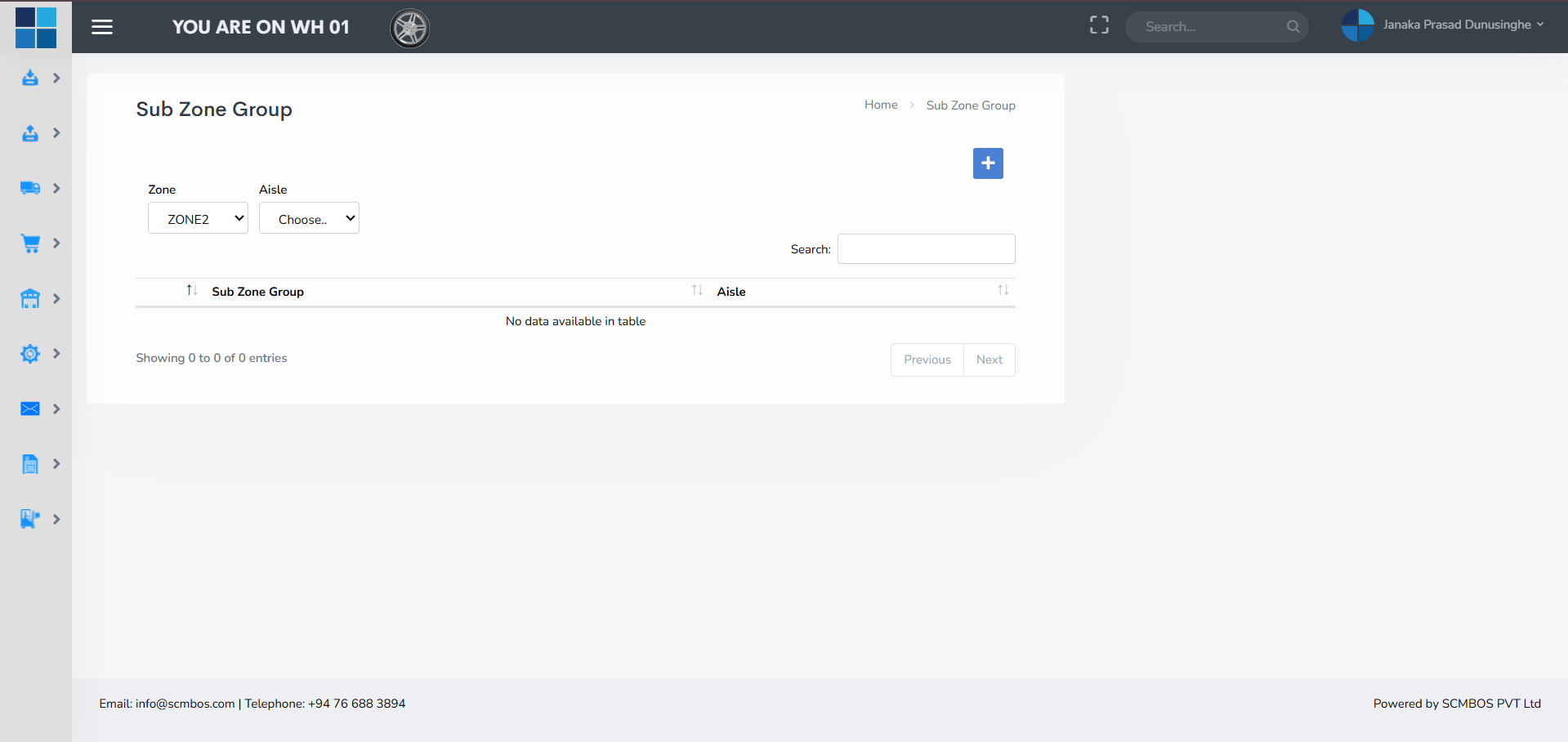
Sub Zone group
Sub Zone Groups aggregate several subzones that share properties (e.g., fast-moving SKUs group). They are used to simplify routing rules and picking algorithms when you want to treat several nearby subzones as a single logical group.
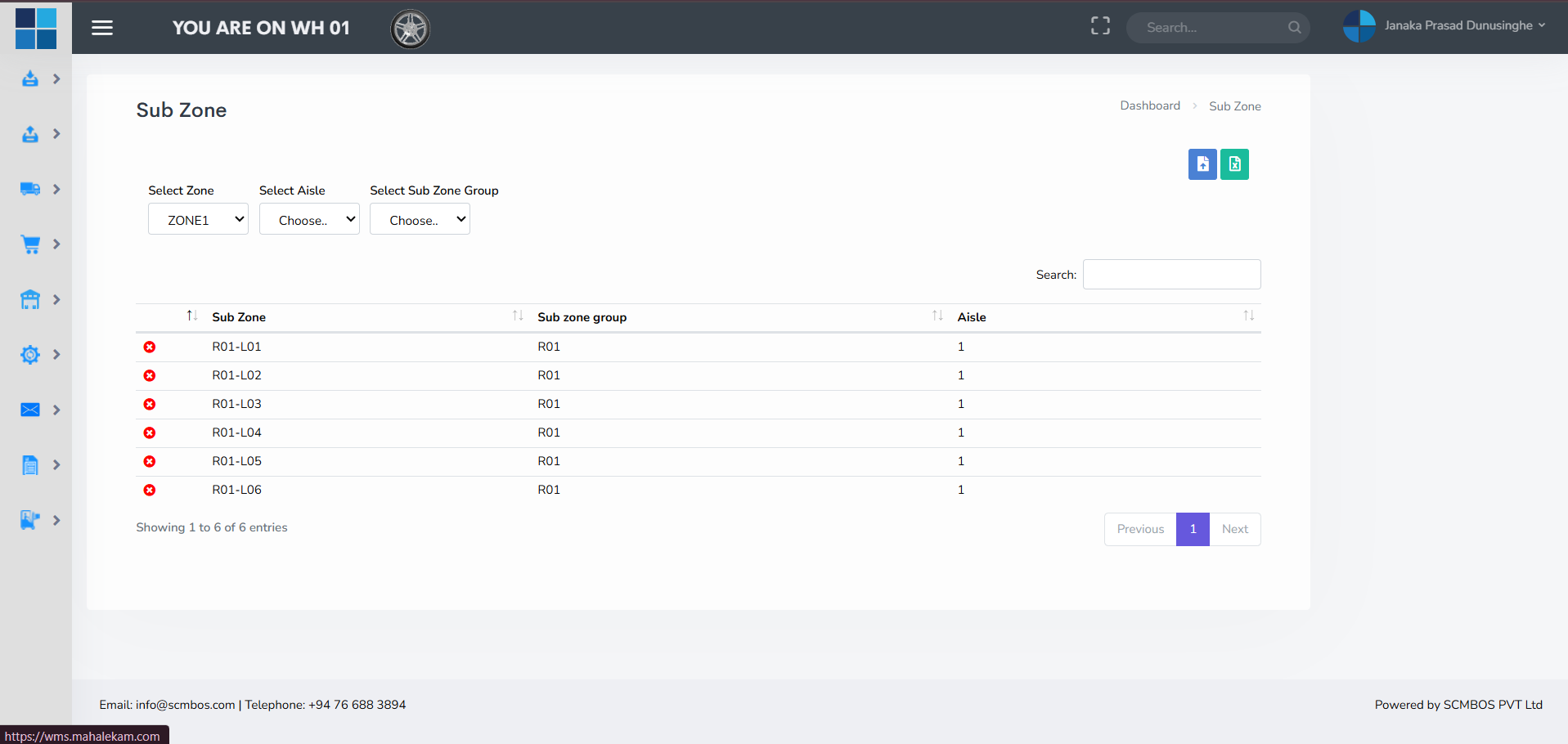
Sub Zone
Sub Zones are granular divisions within a zone for tighter control of storage logic and picking flow. Sub zones can have specific pick-face sizes, replenishment frequencies, and assigned operators.
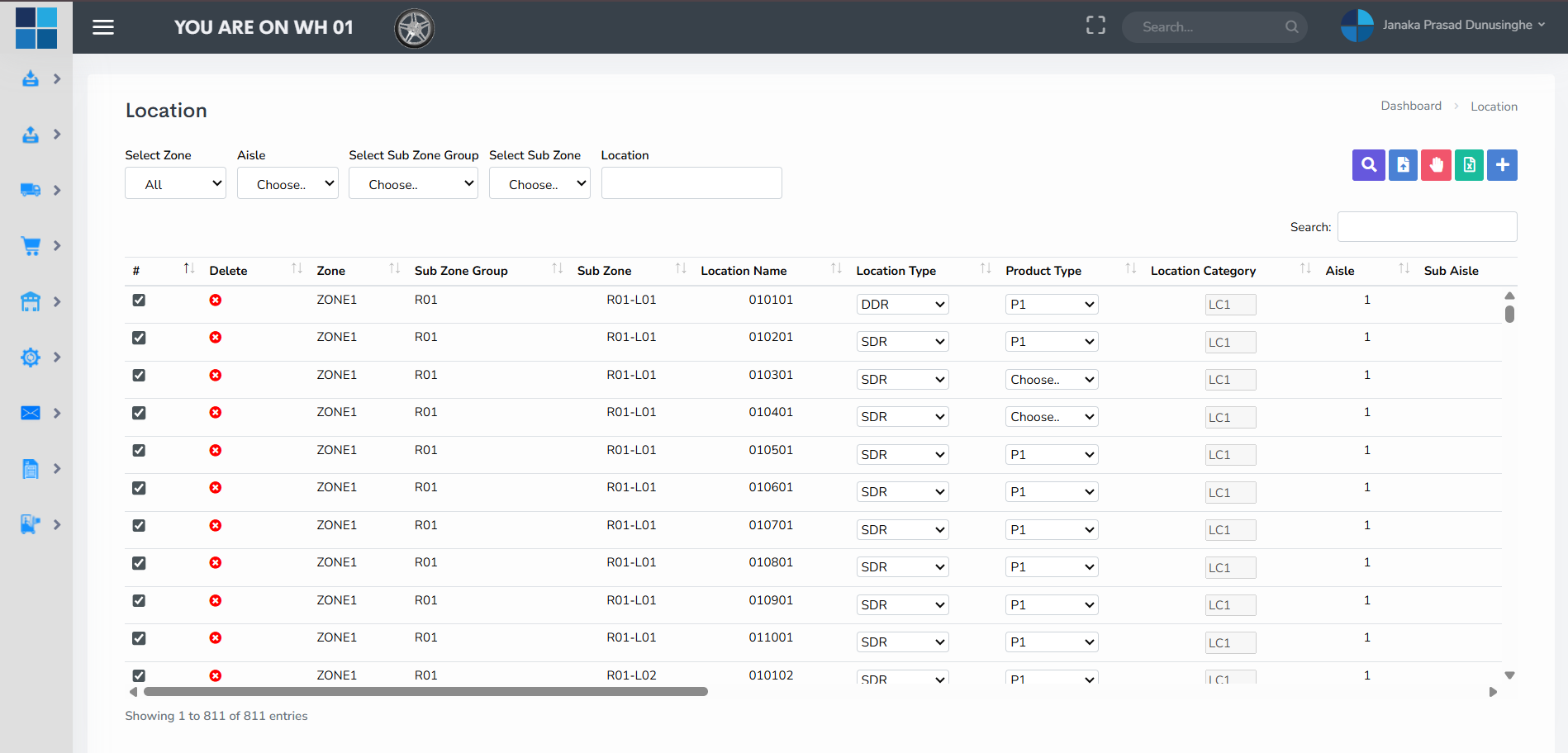
Location
Locations represent the final storage unit — a bin, slot or pallet position. Accurate location setup is essential for fast picking, accurate cycle counting, and minimizing search time. Locations should include clear identifiers and attributes like capacity, allowed product types and whether they are bulk or pick-face.
Products
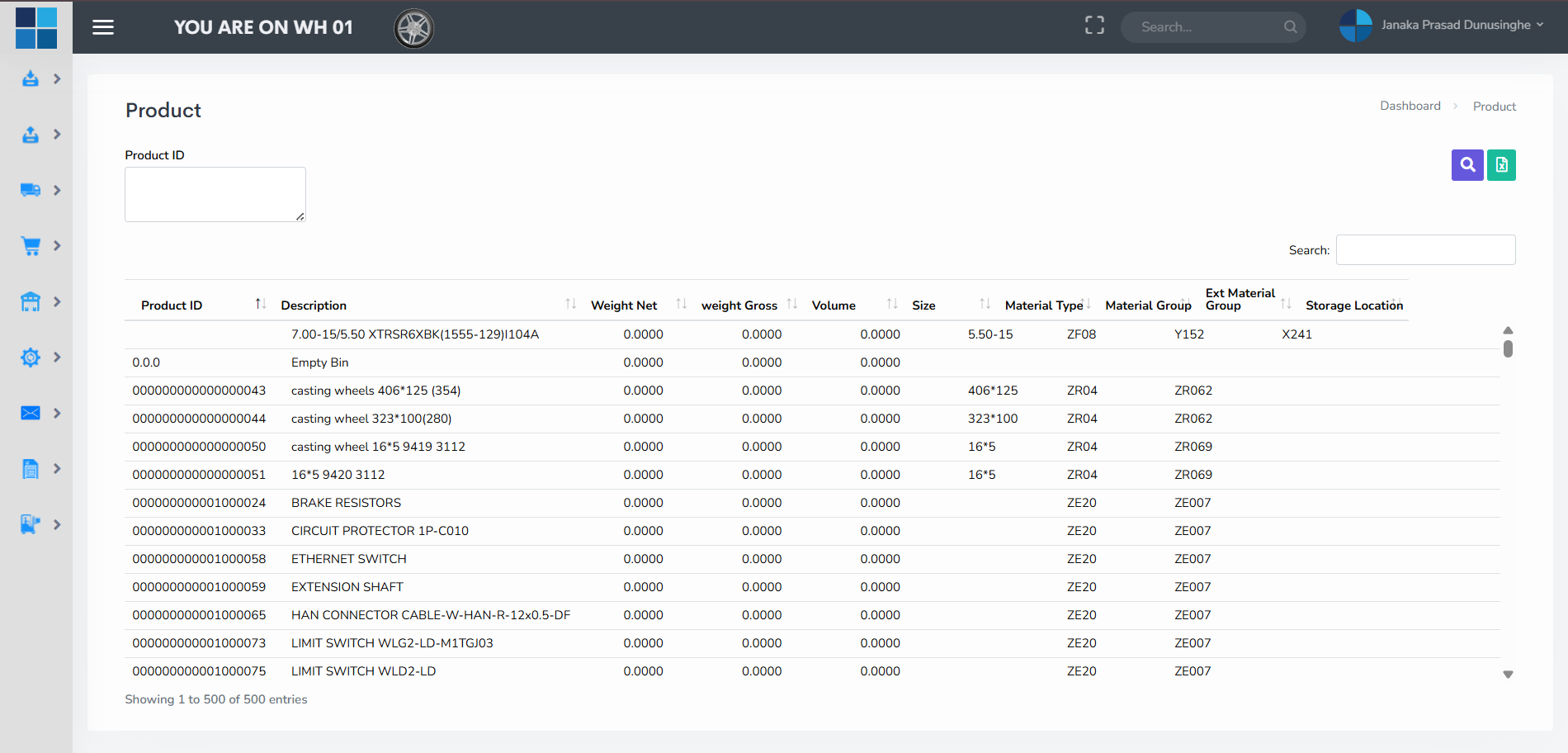
The product master stores SKU details, unit of measure, dimensions, weights, handling instructions, barcode formats and flags for special storage (hazardous, temperature-controlled). A single source of truth in Products Manager ensures consistent behavior across inbound, outbound and picking.
BOM (Bill of Materials)
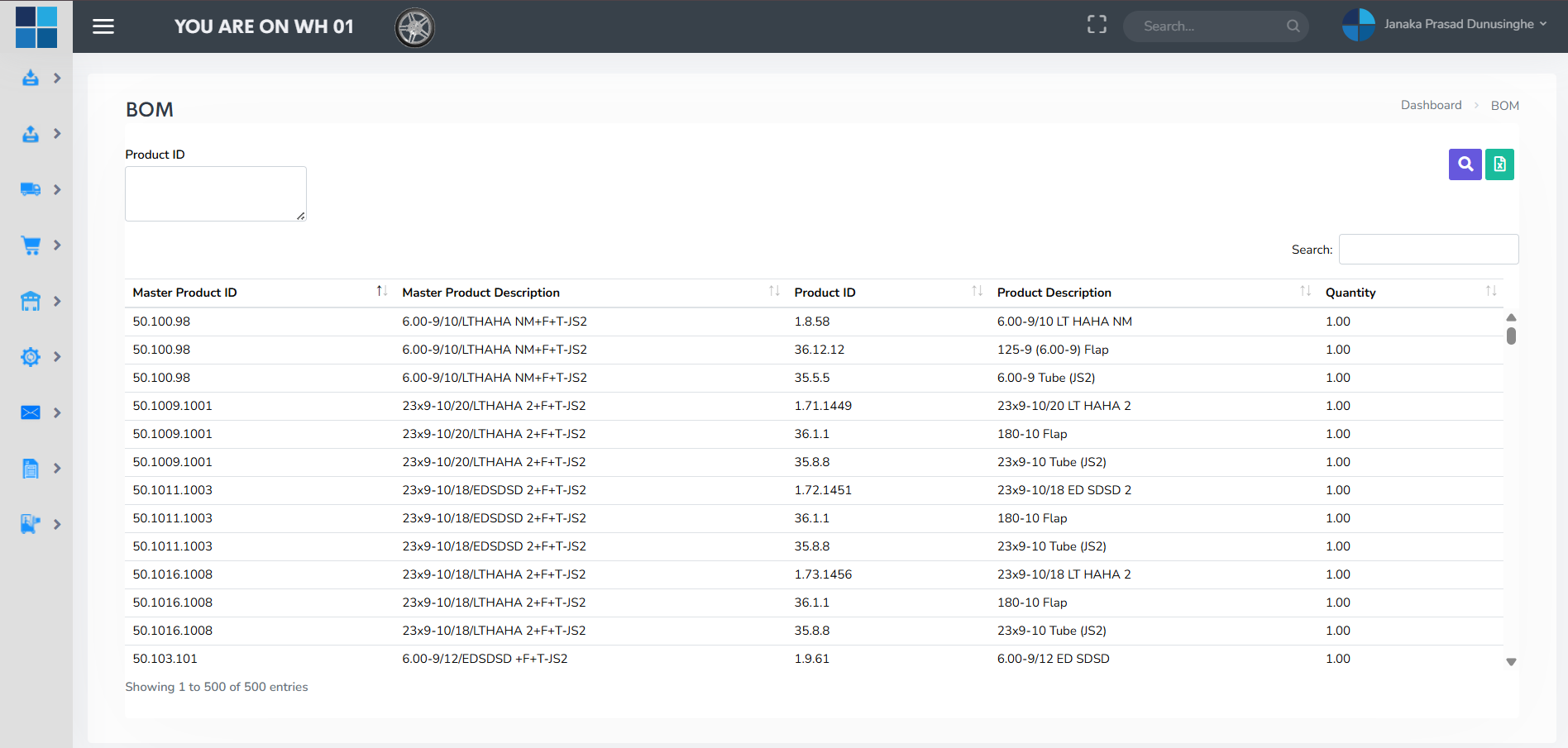
BOM definitions allow kits and assemblies to be created from component SKUs. Use BOM to support kitting workflows where multiple SKUs are combined into a single sellable unit (e.g., promotional bundles or assembly products). BOM transactions should decrement component SKUs and create inventory for the finished assembly.
Customer Instructions
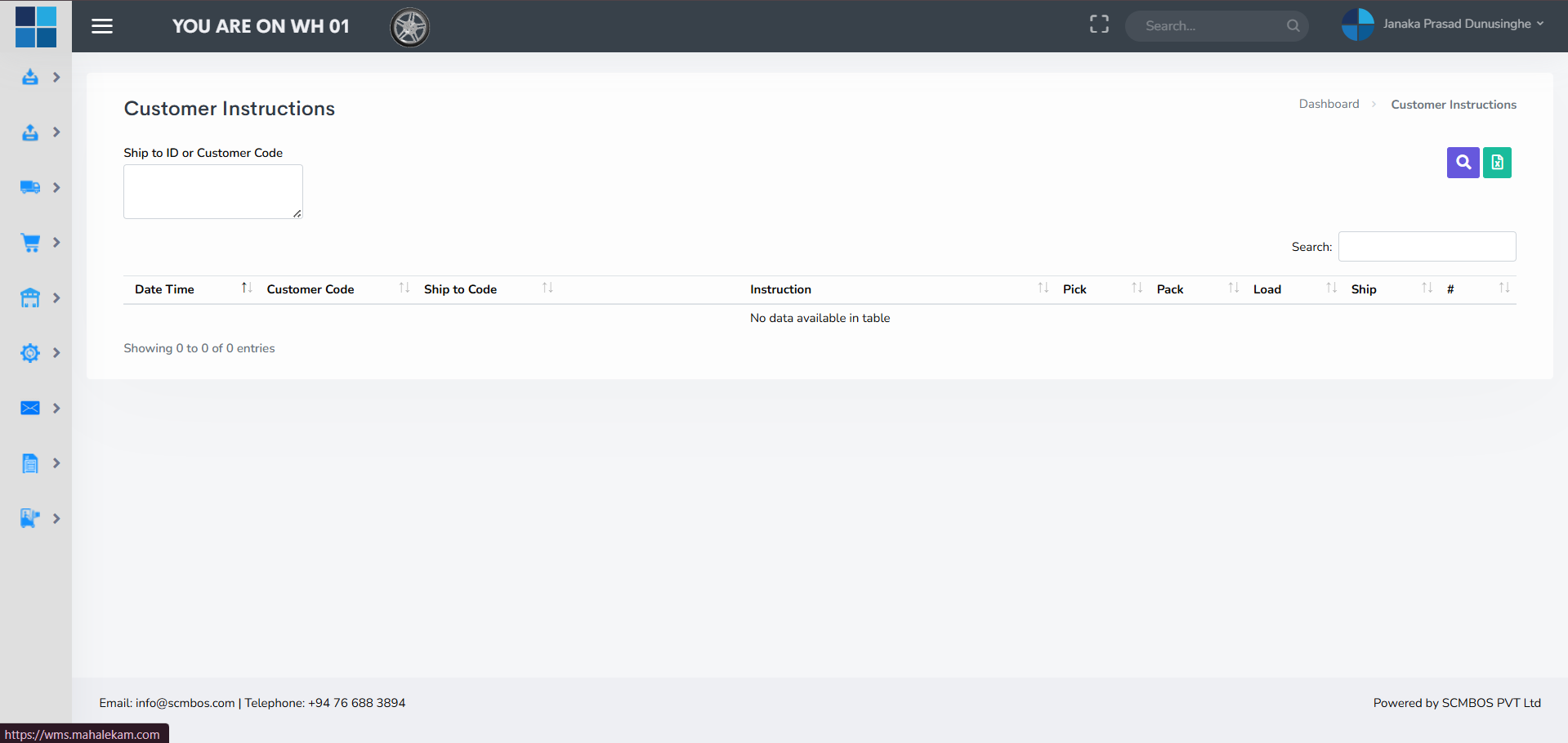
This section stores customer-specific requirements such as unique label fields, packaging preferences, delivery windows, pallet configuration and documentation needs. Make sure to attach instructions to the customer profile and ensure they appear on pick/pack/dispatch screens.
Email & Notification
Email and Notification management configures automated messages like inbound arrival alerts, dispatch notices, exception reports and daily summary reports. Set templates, recipients and triggers. Ensure that critical alerts (e.g., failed SAP sync) use escalation rules to notify responsible staff.

History Browser
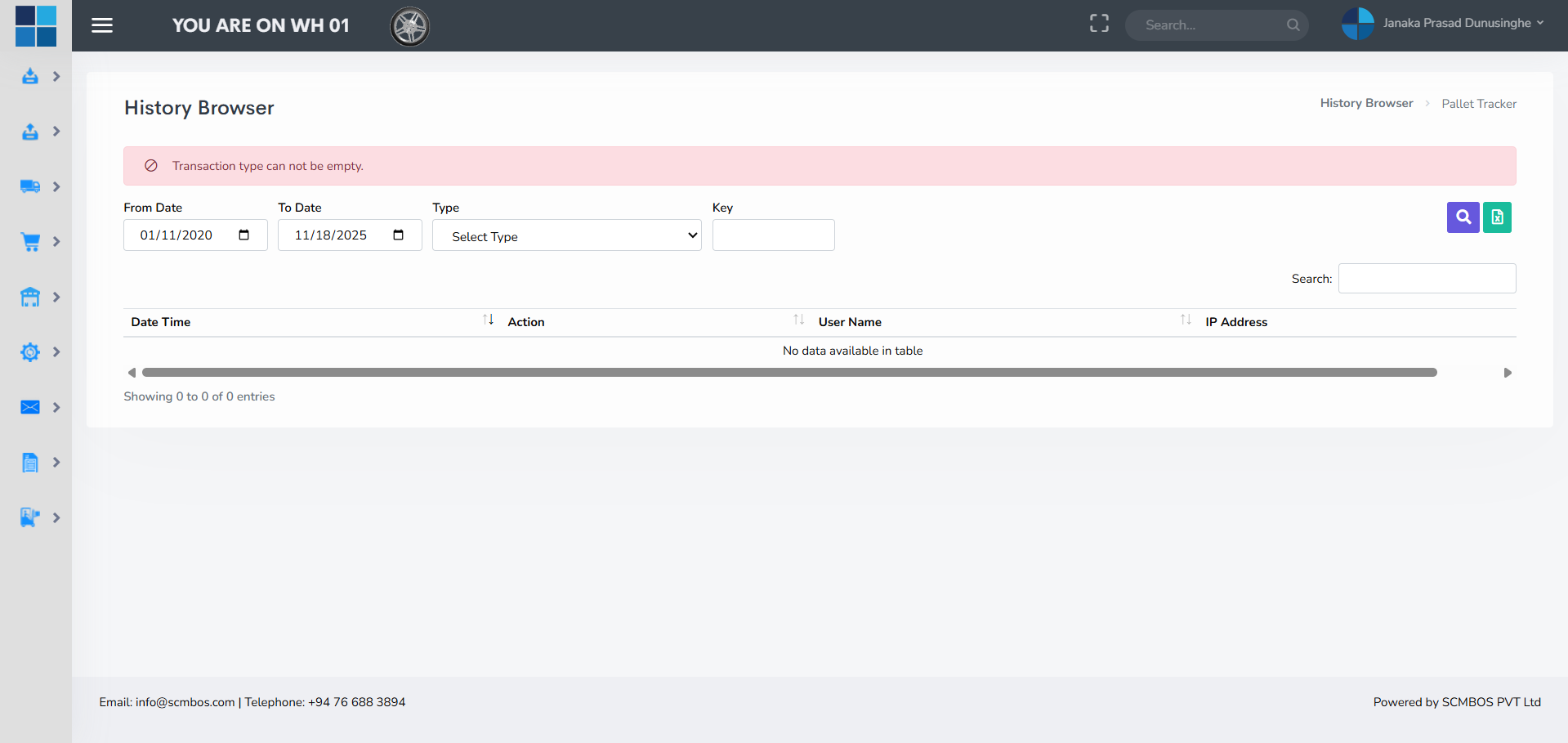
The History Browser allows searching across all historical transactions: receipts, picks, moves, adjustments, and dispatches. Use filters like date, SKU, user, location and document type. This is essential for audits, investigations and KPI analysis.
History SAP Sync Browser
This specialized report shows all synchronization events between WMS and SAP (or other ERP). It includes success/failure flags, payload, timestamps and error messages. Use it to troubleshoot integration issues and to validate that financial/inventory postings are aligned.
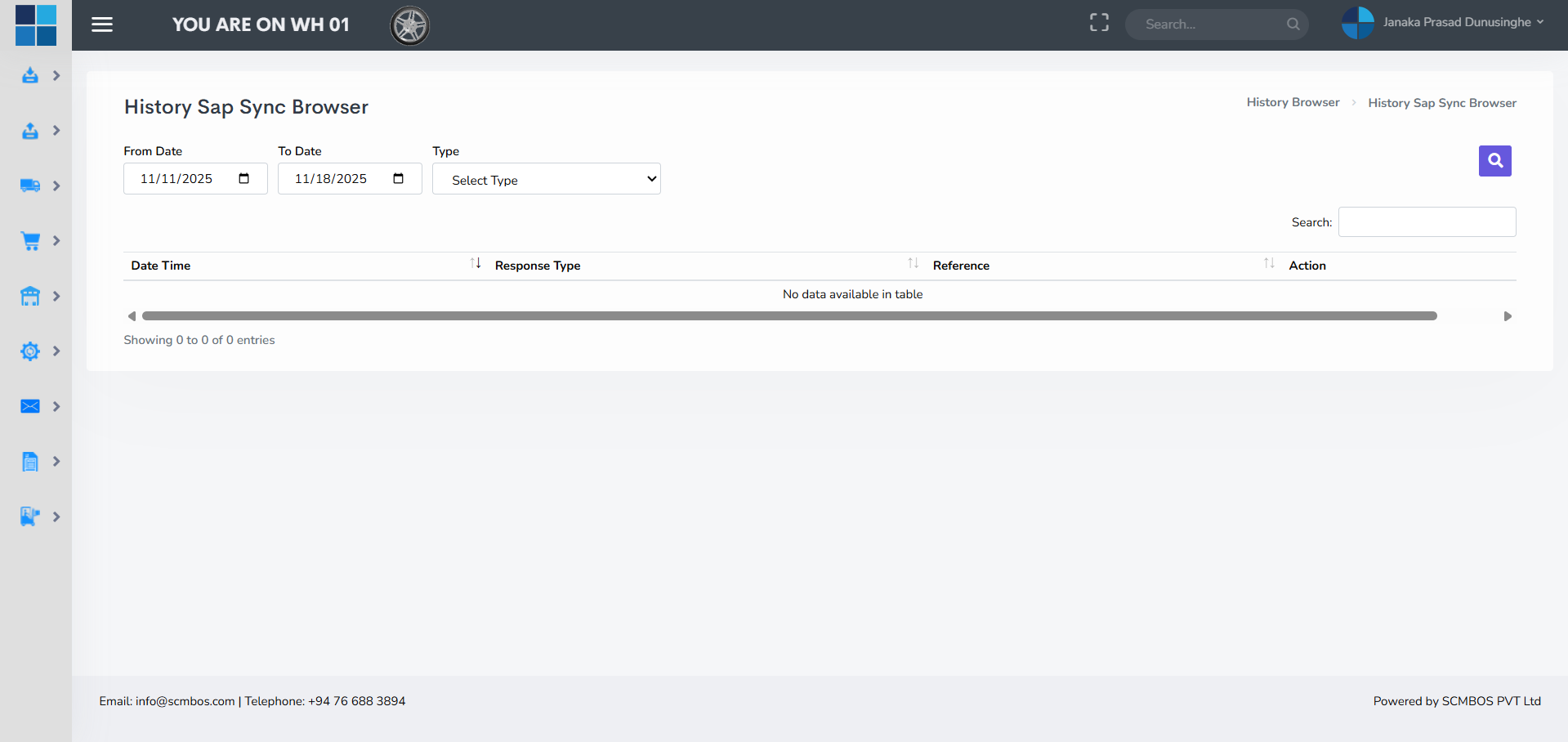
Re-Call SAP Sync
When a synchronization fails, Re-Call SAP Sync allows re-sending payloads or re-triggering updates to ERP. It should show the original payload and allow limited reprocessing with safeguards to avoid duplicate postings.

MHE List
The MHE Master maintains Material Handling Equipment inventory — forklifts, pallet jacks, reach trucks, conveyors, and other devices. Track make/model, capacity, status (in service/out of service), operator assignment and maintenance history. Link MHE to tasks for accountability.

Add User
Add User is the interactive form to create new WMS accounts. Required fields generally include username, full name, email, role, site access and default workstation. After creation, assign appropriate training and initial password policy.

Add User groups
Create groups to manage permissions and responsibilities at scale (e.g., Pickers, QA Inspectors, Dock Supervisors). Group-based permission assignment simplifies maintenance and onboarding processes.
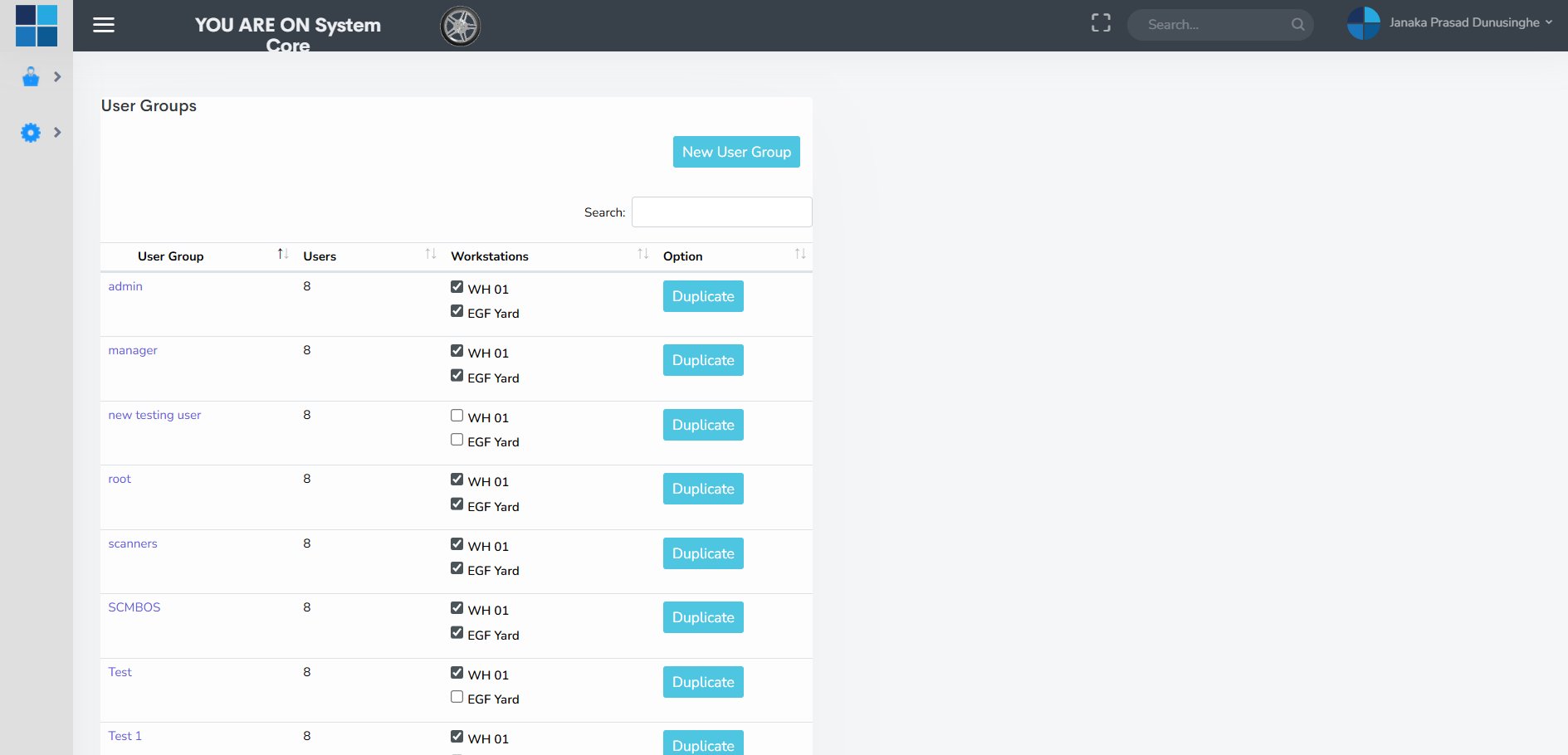
Change Password
Change Password allows users to update their credentials. Enforce password complexity and expiration policies where needed and provide self-service password reset with verification to reduce helpdesk load.
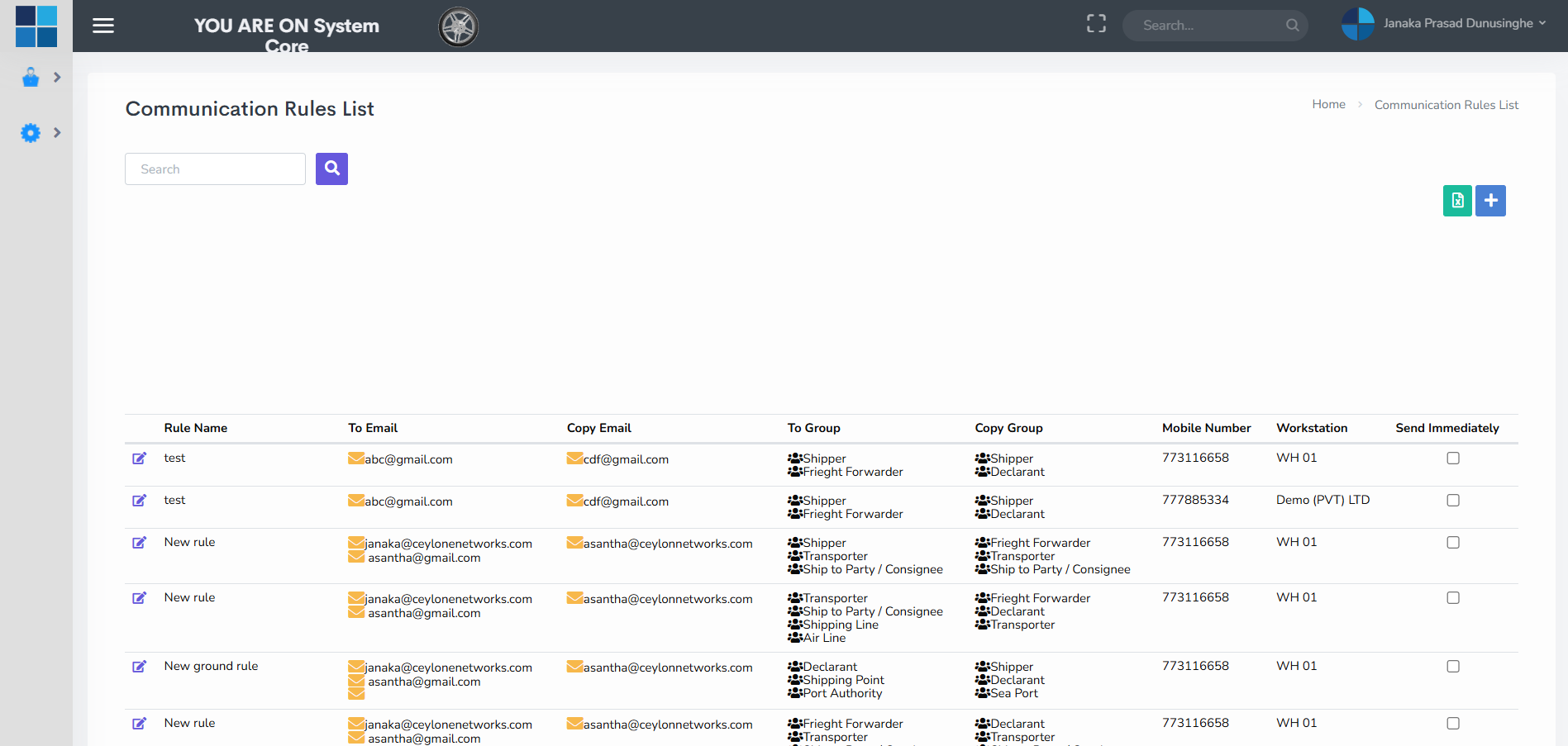
Works station manager
Workstation Manager maps logical functions to physical devices: packing station 1, receiving terminal, handheld groups, or label printers. Proper mapping ensures that print jobs and task assignments arrive at the correct device.

System configurations
System Configurations are global settings such as default picking strategy (FIFO/FEFO), barcode formats, session timeouts, and integration endpoints. Any change should be treated as a controlled configuration change with testing in a non-production environment.
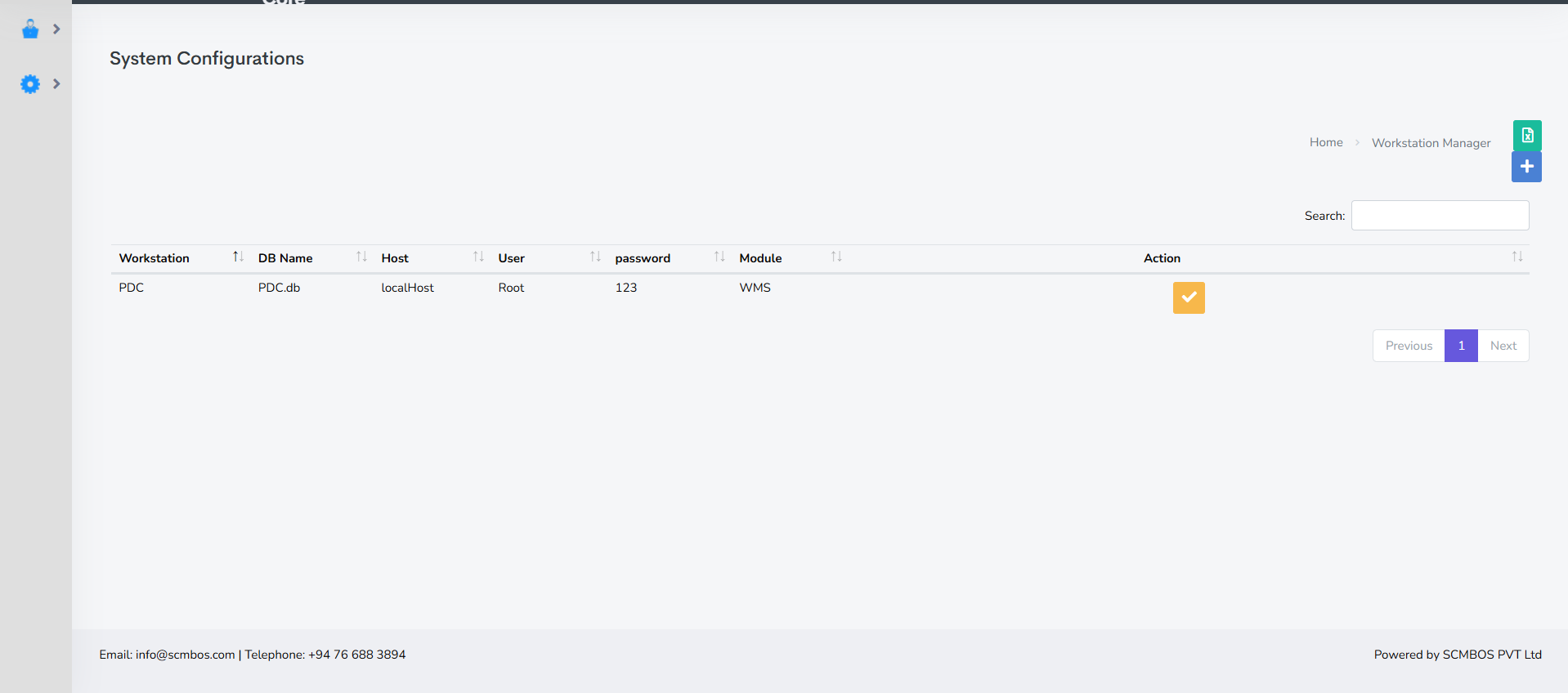
Communication rules
Communication rules define how the WMS exchanges data with other systems — ERP, TMS, carrier APIs, and mobile devices. They include protocols, retry strategies, throttling limits, and message formats. Robust rules prevent data loss and ensure timely updates.
Event manager
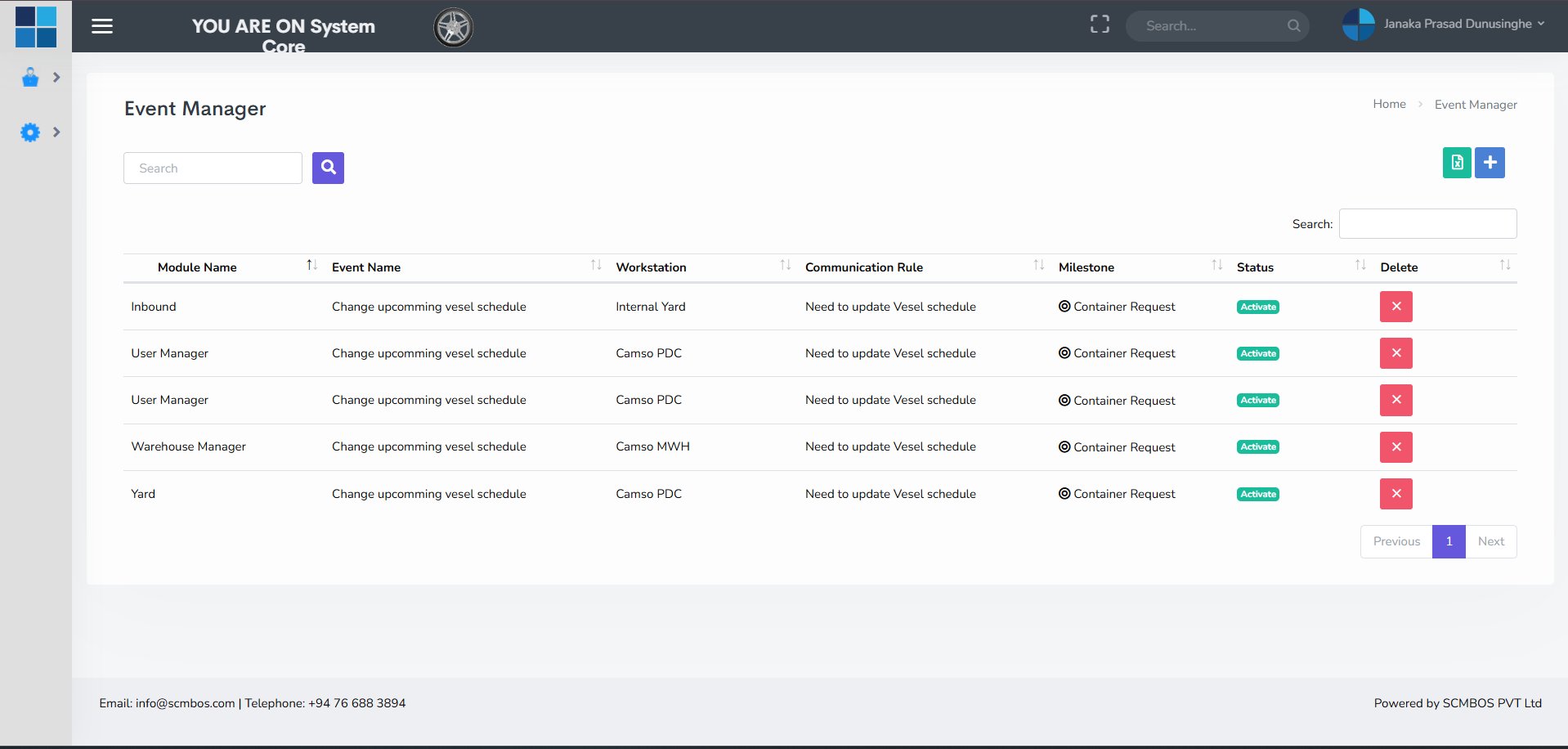
The Event Manager sets up automated triggers and workflows — for example, generating a replenishment task when pick-face falls below threshold, or notifying supervisors if dock delays exceed SLA. Event-driven automation reduces manual monitoring.
Operational Examples & Best Practices
Below are examples and best practices for using the WMS effectively:
- Inbound: Use ASN matching to pre-validate receipts and reduce GRN time. Force-hold high-value items for QC.
- Picking: Use batch picking for many small orders with similar SKUs; use zone picking in large warehouses to reduce travel time.
- Replenishment: Set min-max thresholds dynamically based on seasonality instead of constant values.
- SAP Integration: Monitor History SAP Sync Browser daily and fix failed syncs using Re-Call SAP Sync to avoid financial discrepancies.
- Security: Keep user groups and permission reviews quarterly and enforce strong password & 2FA where possible.